
How to Remove Someone from a Picture: An Honest Guide
How to remove someone from a picture without Photoshop: when to crop instead, what AI fill really does, prompt-based removal, shadow cleanup, and the consent rules worth following.
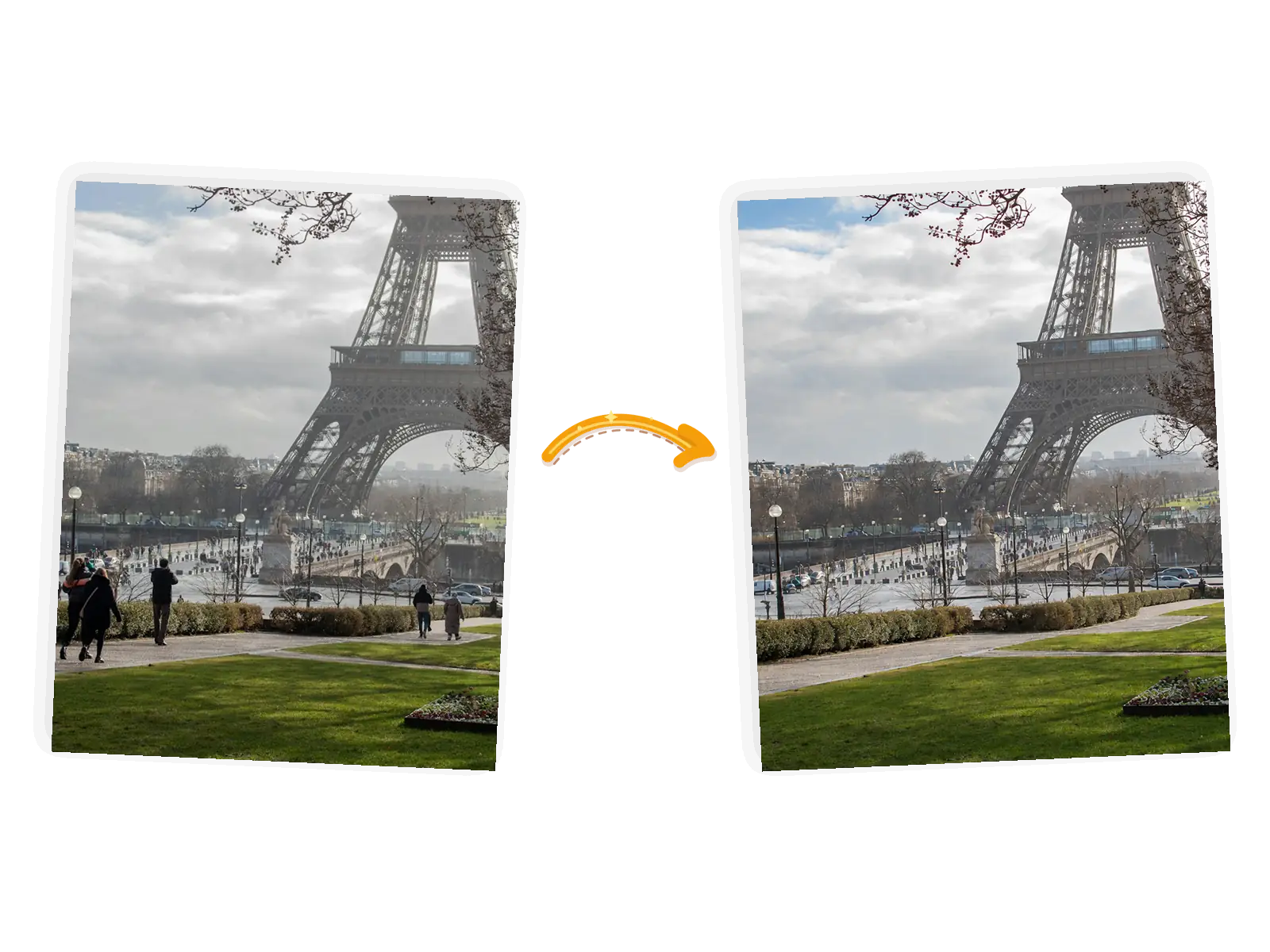
Almost everyone has a photo they like with one person too many in it: a stranger wandering through the frame at a landmark, an ex standing in the back row of a group shot, a relative drifting into the edge of a product photo. The question sounds simple: how to remove someone from a picture. The internet answers it with a wall of one-click tools. What those pages rarely explain is when removal works, what the tool actually does to the space a person leaves behind, and where the honest limits sit.
This guide covers the decision before the edit, what generative fill really does, a prompt-based way to remove people from photos without Photoshop, the situations that need a lighter touch, and the etiquette that keeps the edit decent. The short version: removal is easy to attempt, believable to achieve, and worth checking up close every single time.
When removing someone is the right call
Deleting a person is one of three exits from a spoiled photo. The other two are cropping and reshooting, and picking the wrong one costs more time than the edit itself.
Cropping wins when the intruder sits at the edge of the frame. If cutting ten percent off the left side removes the tourist and the composition still holds, crop first: it takes seconds and nothing about the scene changes. Reshooting wins when you control the scene and the photo has a structural problem: a wedding table half-blocked by a waiter, a product shot with a foot in it. Five more minutes with the camera beats an hour of repair.
Removal is the right call when the person sits inside the composition and no crop can reach them: the landmark shot you flew in for, the only group photo where everyone looked good, the real estate frame where a neighbor crossed the driveway. In those cases the edit is not vandalism of the photo. It is finishing it.
| Situation | Best exit | Why |
|---|---|---|
| Stranger at the frame edge | Crop | Free, instant, nothing invented |
| Person inside the composition | Remove | The only way to keep the shot |
| Scene you still control | Reshoot | Cheaper than repair, no invented pixels |
| Person blocking the subject | Reshoot or heavy edit | Fill quality drops as the area grows |
What actually happens when you delete a person
Every modern remover works the same way at heart. You mark the person, the tool erases those pixels, and a model paints new background where they stood. The technical name is inpainting; marketing calls it generative fill or magic eraser. The part that matters to you is this: the space a person leaves behind is not recovered, it is invented. The model looks at what surrounds the hole (sky, brick, grass, crowd) and continues the pattern inward.
That explains every success and every failure you will have. A stranger against open water disappears without a trace, because water is an easy pattern to continue. A stranger standing in front of ornate ironwork leaves a smudge, because the pattern behind them was never visible and the model has to guess it. A person leaning on a railing takes the railing with them unless the edit rebuilds the rail they covered.
Two practical rules follow. First, the bigger the area and the busier the texture, the more the fill will invent, so judge it at full zoom instead of at gallery size, where smudges hide. Second, people rarely come alone: the shadow they cast and the reflection they leave in glass or water usually need their own removal pass, which is exactly what tools like Remove Shadow from Photo are for after the person is gone.
How to remove someone from a picture with a prompt
The classic workflow is a brush: you paint over the person and the tool erases what you painted. It works, and for a stranger against a plain background it is hard to beat. But brushing has a blind spot: the tool only knows what you covered, not who you meant. Brush too small and you delete a shoulder and keep an arm; brush too large and you take out the doorway behind them.
Prompt-based removal replaces the brush with a sentence. In the AI Object Remover editor you upload the photo, name the person and where they stand, and list what must survive untouched. A first pass that works for most shots reads like this: "Remove the man in the red jacket standing to the left of the fountain. Keep the fountain, the two women beside him, and the background exactly unchanged." The keep-list is what makes named removal safer than a brush: the editor knows the fountain is not part of the job.
The workflow, end to end:
- Upload the photo (JPEG, PNG, or WebP up to 20MB, one photo per edit).
- Name the person by position and clothing, not by name: "the woman on the right edge in the blue hat" gives the model something to find; "that person" gives it nothing.
- Write the keep-list: the people who stay, the structure they stand near, the background pattern that must continue.
- Generate and check the filled area at full zoom. Skin tones on distant strangers usually pass; areas where the person overlapped something need a look.
- Rerun with sharper wording when a pass misses. Every run is fresh pixels, so a second attempt can simply be better. If a task fails outright, its credits come back automatically.
No Photoshop skills are involved: no masks, no clone stamp, no layers. The trade-off is control at the pixel level: when you need a specific patch of fence rebuilt a specific way, manual retouching in Photoshop still wins, and serious restorations may end with a light pass in the AI Photo Enhancer to settle color and detail across the finished frame.
Situations that need a different touch
Tourists and photobombers
The easiest case. They stand against scenery, they rarely touch the subject, and their absence changes nothing about the people in the photo. The AI Object Remover clears them in a pass: name them by position and clothing, keep everything else, and expect the fill to pass on the first or second run.
Exes and group photos
Technically the same operation, emotionally heavier. Two things matter here. First, decide whether full removal is really the goal: in a tight group, removing one person means rebuilding the arms, shoulders, and gaps they occupied, and the surrounding bodies are exactly the "busy texture" that makes fills work hard. Sometimes the better edit is a replacement crop, a version of the photo that keeps the people who belong in it. Second, when full removal is the goal, work in passes: remove the person, then clean what they leaned on, then check every arm at full zoom.
Crowds
Removing one face from a crowd of forty is a different job from removing a crowd. Named removal handles the single face well. Emptying a plaza is also possible, and it is a larger job, best done region by region rather than in one giant prompt, and it deserves a plain-background check after each pass.
The shadow they leave behind
The most common "the removal looks haunted" complaint is not about the person. It is about their shadow, still cast across the pavement after they vanished. Shadows are separate edits: remove the person first, then remove their shadow as its own named fix, then compare against the original at full zoom to confirm the ground reads consistently.
Common mistakes that give removal a bad name
The edit was never the problem; the checkout was. These four account for most unconvincing results:
- Accepting the first pass at gallery size. Zoom to 100 percent on the filled area before deciding anything. Smudges that vanish at thumbnail scale are obvious at full size.
- Forgetting the shadow, the reflection, and the glare on glasses. A person removed but their reflection left in the window is its own kind of photobomb.
- Removing people who overlap the subject. When a stranger's arm crosses in front of your friend, the fill has to invent both the background and the friend's jacket. Expect to rerun, and expect the keep-list to do real work.
- Editing the only copy. Work from a duplicate, keep the original scan untouched, and compare every pass against it.
The ethics of removing people
Removal is a normal part of photo editing, and it still deserves one honest pause. The question is not whether you can remove someone. It is whether the result tells a lie that matters.
Personal edits are the clear case: cleaning strangers out of your vacation photo harms no one. Shared family edits live in the same territory, with one added question: would the people who remain be comfortable with the version being shared? Things change when a photo makes a claim: news images should not have participants erased, marketplace and listing photos should not hide defects a buyer would find in person, and a photo used to argue something about a person or event is the wrong canvas for this tool. Commercial and editorial contexts carry their own disclosure rules; when in doubt, disclose or leave the person in.
There is also the subject's side. Removing an ex from a personal album is ordinary life. Posting that same edit to mock them is a different act with the same tool. The editor does not know the difference; you do.
FAQ
Is it free to remove someone from a picture?
With the AI Object Remover on this site, guests get 9 free credits and signed-in accounts get 15, refreshed every UTC day and not accumulated. A standard 1K edit costs 3 credits, so the daily allowance covers a few attempts, and downloads carry no watermark.
Do I need Photoshop to remove a person?
No. Prompt-based removal handles the common cases (strangers, photobombers, background bystanders) with a sentence and a keep-list. Photoshop remains the tool of choice when you need pixel-exact control over what the filled area looks like, or when the region is large and structurally complex.
What kind of photos work best?
Shots where the person sits against a readable background: sky, water, grass, plain walls. Sharp originals help the model continue textures accurately. Heavy HDR brackets and extreme night grain make fills harder to judge.
Why does the area look strange after removal?
The area is new pixels: the model guessed the background that was hidden. Busy patterns, straight lines, and anything the person overlapped are the hard cases. Zoom in, rerun with a more precise description of the person and what surrounds them, and check whether their shadow needs its own pass.
Do I need permission to remove someone from a photo?
It depends on what the photo is for. Removing yourself, or strangers from your own vacation shots, is ordinary editing. Removing a person from a photo you intend to publish, sell, or use to make a claim about them or an event carries consent, contract, and disclosure questions that this guide does not answer, so treat those cases as a decision for the person and the platform involved.
Tool or Photoshop: which should I learn?
For "get this person out of my photo," a prompt-based remover is faster and good enough most of the time. Learn manual retouching when you face large, structurally complex fills regularly, or when a client needs a specific reconstruction rather than a plausible one. Many working photographers use both: generative removal for the ninety percent, manual repair for the rest.