ImagEditorAI

AI Product Photography: Studio Scenes from One Photo

Upload one product photo, describe the scene you want, and this AI product photography tool rebuilds the surroundings while your label, shape, and colors stay. It can also match a scene from a reference photo.

  • No sign-up
  • Free daily credits
  • No watermark
0 / 1000

Example 1 of 3

Swap the scene around the product

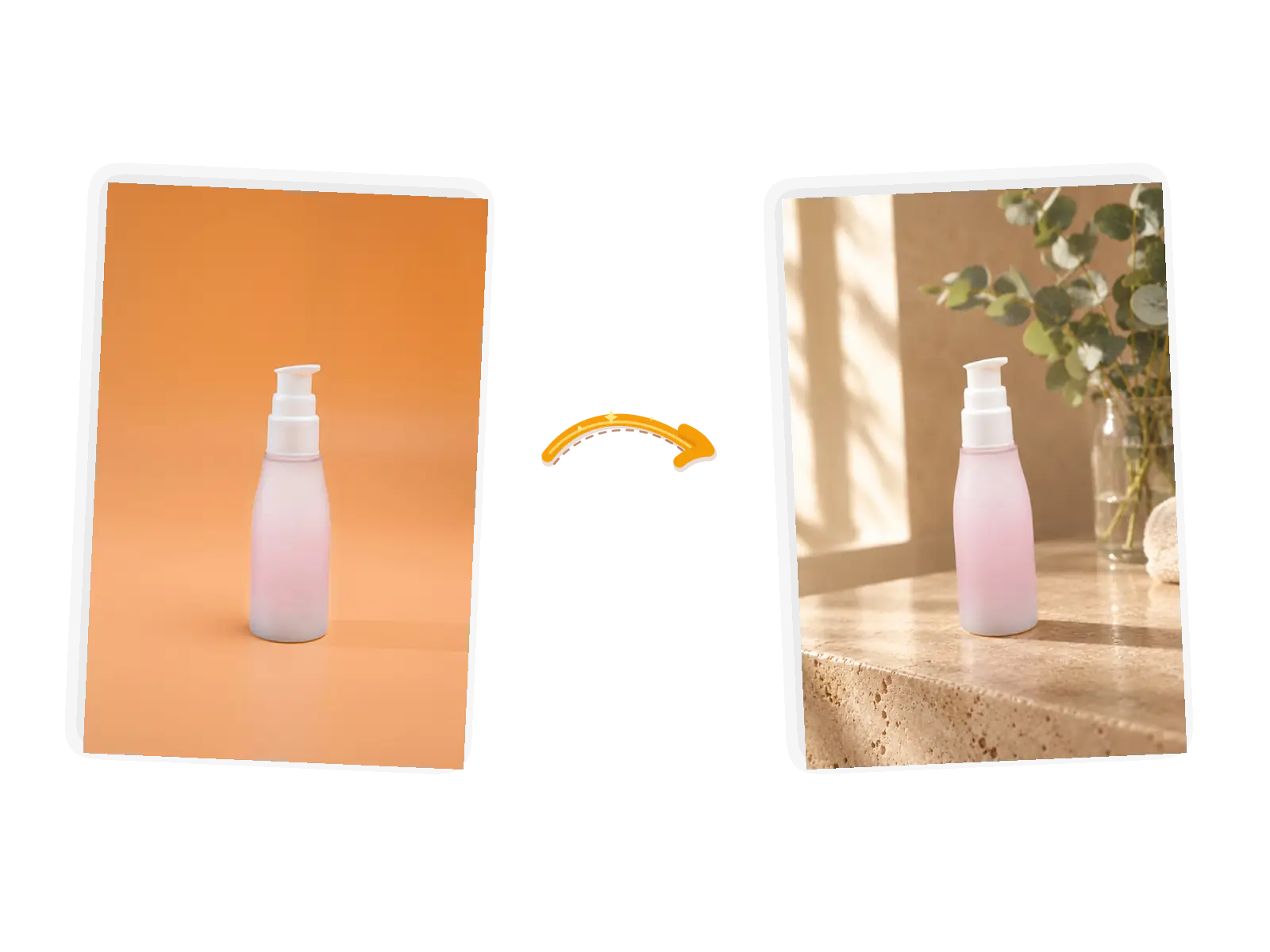
The scene swap: the pump bottle moves to a travertine ledge in warm light while the bottle itself stays
Prompt

Place the frosted pump bottle on a travertine ledge in a warm sunlit bathroom with eucalyptus behind it; keep the bottle's shape, frosted texture, and pump exactly unchanged

What Makes This AI Product Photography Tool Different

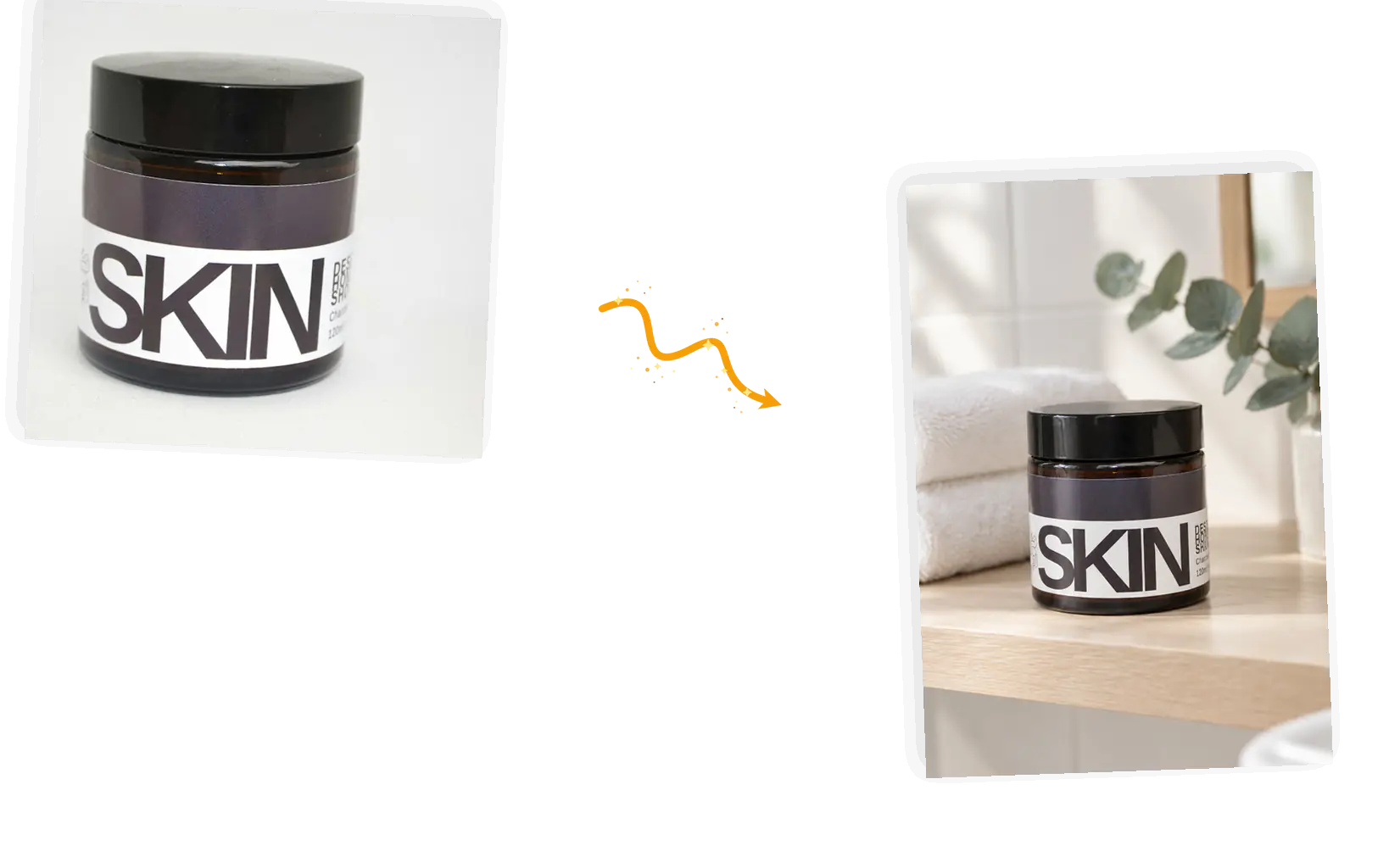
A jar with a bold SKIN label sits on a bathroom shelf while the label text stays exactly as photographed

Name what stays on the product

The scene changes; the product doesn't have to. A keep-list pins the label, logo, shape, and colors while the model rebuilds what is around them, and small print still deserves a zoom before you ship. Generative scenes can drift, so treat the check as part of the job.
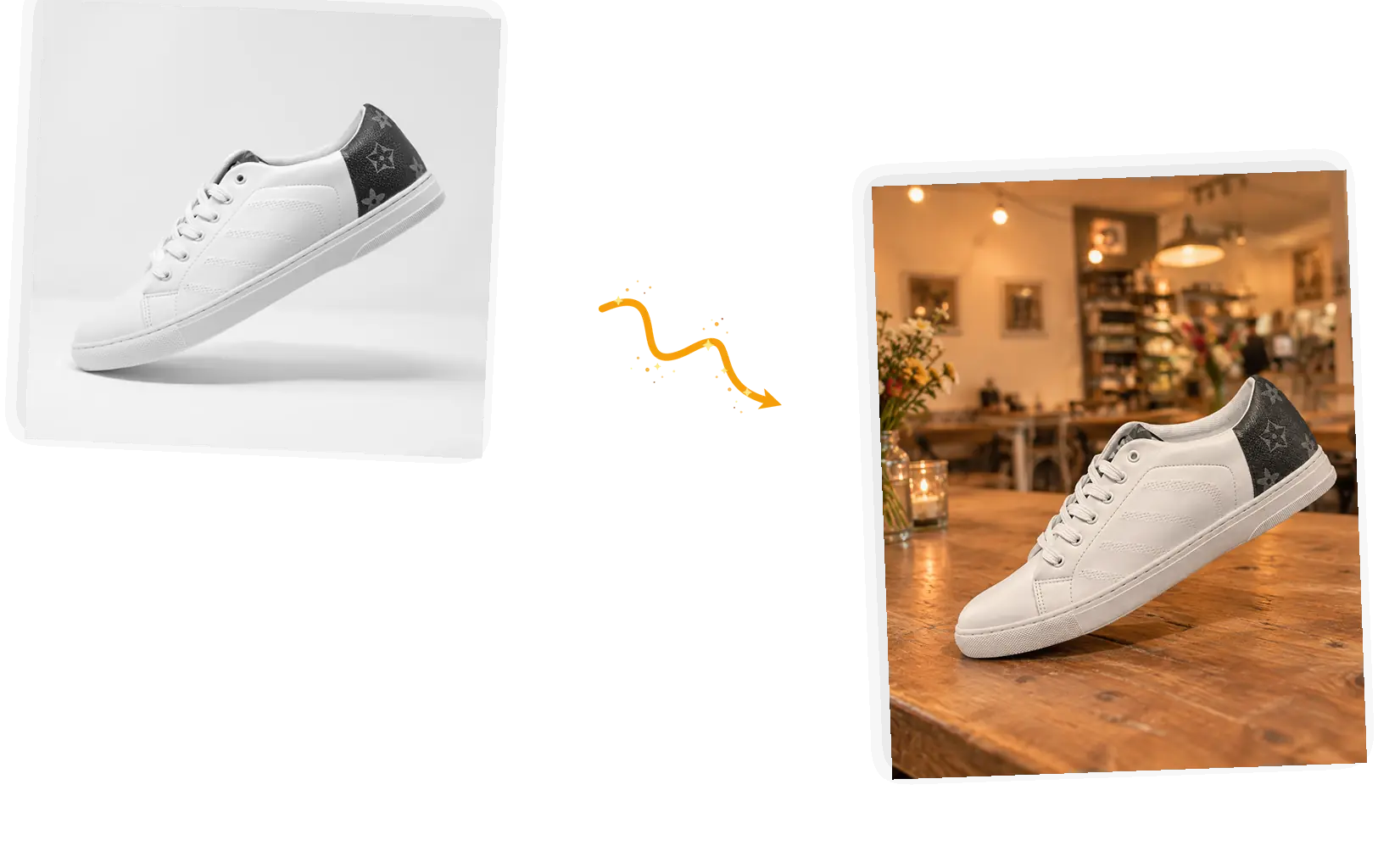
A white sneaker is placed into a warm wooden scene that matches a second reference photo

Borrow the scene from another photo

Attach up to five reference photos and describe the match: this counter, this cafe light, this mood. The new scene follows your reference instead of a template, and the product is dropped into it with its label intact.

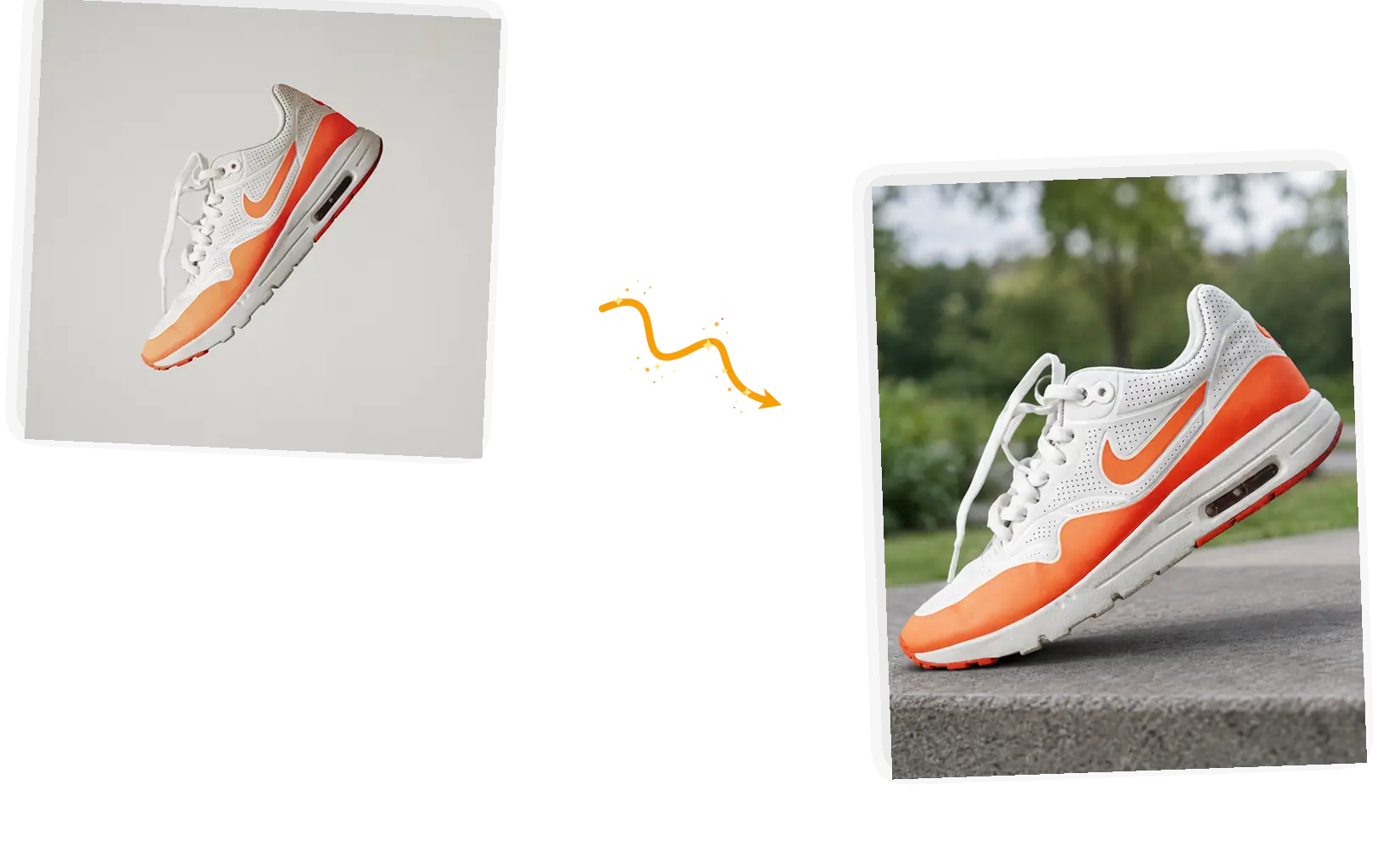
A white and orange sneaker moves from a plain background onto a concrete step with greenery behind it

One packshot, many scenes

Shoot once and generate the listing shot, the lifestyle shot, and the ad variant from the same photo. Each run costs 3 credits at the default 1K size, so trying three scenes costs less than one run to the props store.

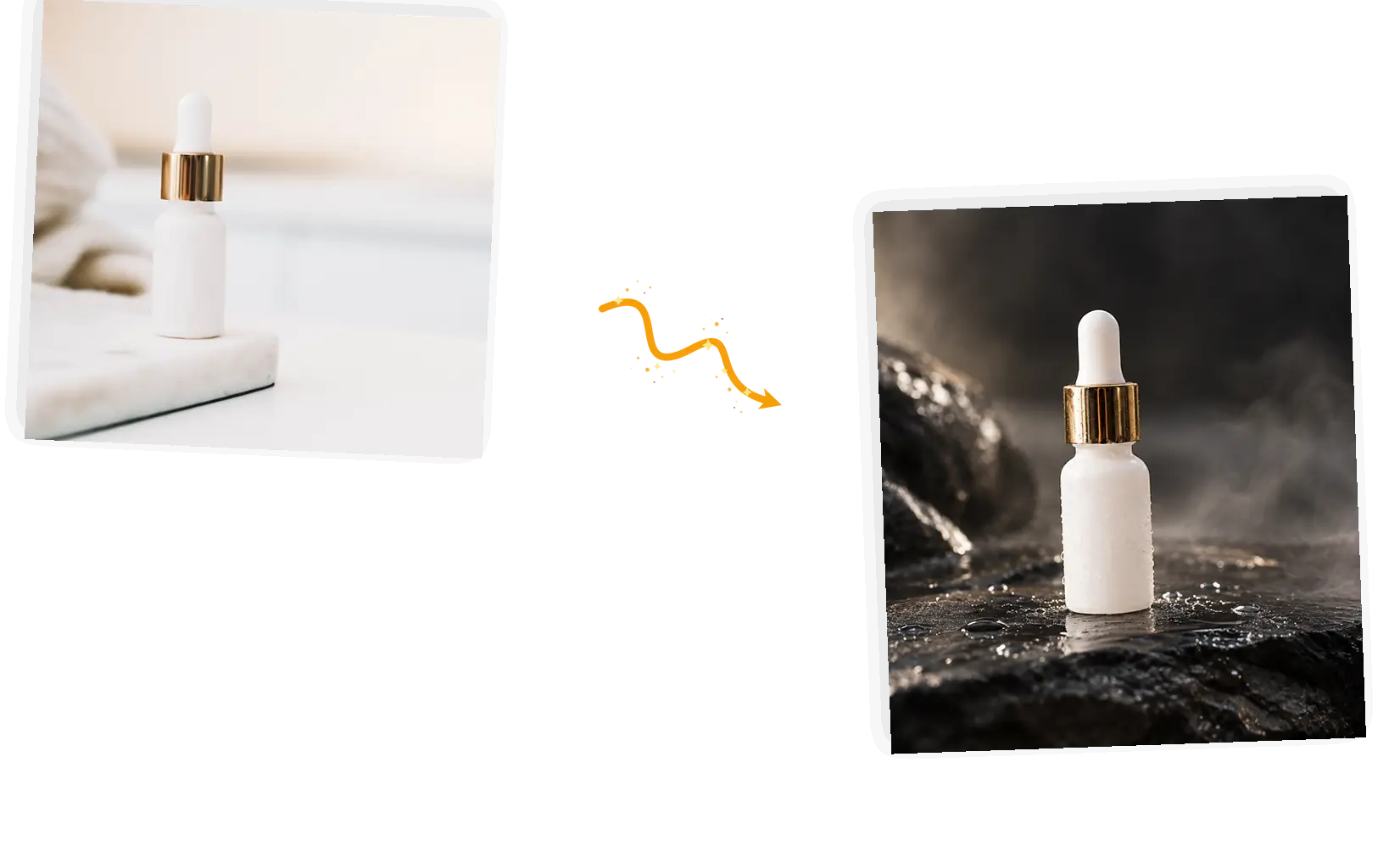
A white dropper bottle rests on dark wet slate while the moody light keeps the gold cap legible

Rerun until light and shadows agree

A shadow can point the wrong way, or a reflection can disagree with the surface, especially on glass and metal. Results can vary between runs, so rerun with a sharper description and keep the better one; downloads are full resolution with no watermark, and a failed task returns its credits automatically.

What Is AI Product Photography?

AI product photography used to mean a studio booking, a bag of props, and an afternoon of retouching. Here it means one sentence: you upload a product photo, describe the scene you want (the surface, the light, the props) and list what must stay. The model rebuilds the surroundings around your product, so a phone shot from the kitchen table can come back looking like it traveled. Attaching a reference photo turns "a scene like this" into the actual counter and light you meant. It is still a generative edit: label small print, fine texture, and shadow direction can drift, so zoom in on the result before it goes to a listing, and rerun when something moved. Sellers use AI product photography for listings and ads; anyone selling online can skip the studio and still get shots that look deliberate.

How to Use the AI Product Photography Tool

Five steps from one product photo to a scene worth listing.

1

Upload the product photo

Bring the shot as a JPEG, PNG, or WebP file up to 20MB. A clear product with visible edges gives the model a cleaner subject to keep.

2

Describe the scene

Name the surface, the light, and the props: "on a wooden counter beside a ceramic cup, morning light". List what stays: the label, the shape, the colors. To copy a scene you like, attach that photo as a reference.

3

Choose the output

Keep the original aspect ratio, or pick a preset when the platform asks for one. The editor shows the credit cost before you generate.

4

Generate and inspect

Zoom in on the label small print, the shadows, and the edges before you judge the result. If something drifted, rerun with a sharper description; credits come back on failures.

5

Use the result

Download at full resolution, or stay in the workspace and generate the next scene from the same photo.

Why Use the AI Product Photography Tool?

A scene around your product, not a sticker on a background

Cut-and-paste background swaps leave the product floating: wrong shadow, wrong contact, wrong light. Here the scene is rebuilt around the product, so the surface meets the object and the light agrees across the frame.

One sentence instead of a studio day

No lights to set, props to buy, or masks to cut. You describe the scene in a line, the ready-made suggestions show the pattern, and the editor shows the credit cost before each run.

The result keeps working

Download the scene at full resolution with no watermark, or stay in the workspace and run the next scene, a recolor, or a different edit on the same photo.

How the AI Product Photography Tool Compares

Three ways to get a scene shot of a product, compared on what each one asks of you and where the prompt-driven tool fits.

DimensionStudio shootPreset scene generatorsAI Product Photography
InputThe product, studio time, props, and a photographerOne product photo; the template decides the sceneThe product photo, a sentence describing the scene, and optionally up to five reference photos
Scene controlFull control over light and props, at the cost of time and skillScenes come from a fixed template listPrompt-level: name the surface, light, props, and everything that stays
Matching a reference scenePossible with props and set building, but slowPresets pick from the built-in library, not from your photoAttach the reference photo and ask the scene to match it
Product fidelityThe real product is photographed; nothing is re-drawnThe product is kept, but fine print often softensA keep-list pins the label, shape, and colors; zoom before shipping and rerun if small print drifts
OutputRetouched files at whatever resolution you shotA composed image at the tool's fixed export settingsThe product in the new scene at the original ratio and full resolution, downloadable and watermark-free
Consistency across rerunsThe same setup re-shoots the same way, until something movesThe same template every time, whatever it doesGenerative runs can differ a little; rerun and keep the better one

Tips for Better Product Photography Prompts

The prompt is the whole brief: name the scene and guard the product.

  • Name the surface, the light, and the props: "place the bottle on a travertine ledge in warm morning light", not "make this look professional".
  • List what stays: the label, the logo, the shape, the colors. The keep-list is what holds the edit to the scene.
  • Change one scene per run. Zoom in on the label small print and the shadows before you download; if small print drifted or a shadow points the wrong way, rerun with a sharper description.

Place the [product] in/on [scene]; keep the [label, logo, shape, colors] unchanged.

A listing shot from a phone photo

Too vague

make my product photo look professional

More useful prompt

Place the jar on a bathroom shelf with towels behind it in soft daylight; keep the label and the black lid unchanged

A scene from another photo

Too vague

put my shoe in that cafe

More useful prompt

Place the sneaker in a scene matching the second photo's wooden table and warm light; keep the shoe's shape and colors unchanged

Fixing light and mood

Too vague

make the lighting better

More useful prompt

Move the bottle to dark wet slate with low side light and a few water drops; keep the frosted surface and gold cap unchanged

Who Uses the AI Product Photography Tool

Online sellers

Listings need scenes, not phone shots. Online sellers use AI product photography to turn one packshot into the listing image, the lifestyle crop, and the ad variant, then let the click data pick the winner instead of the calendar.

Small brand owners

A product line is easier to launch when every item gets a scene. AI product photography keeps labels and shapes intact while each jar, bottle, or bag lands in a setting that fits the brand, without a studio invoice per product.

Freelance photographers and agencies

Client budgets do not always cover a shoot. An AI product photography pass extends one hero shot into a scene set for mockups, decks, and drafts, while the deliverable shots stay yours.

AI Product Photography FAQ

How AI product photography works, how the label survives, and what it costs.

You upload a product photo and describe the scene you want: the surface, the light, the props, and what must stay. AI product photography rebuilds the surroundings around your product, the result lands in the workspace, and a failed task refunds its credits automatically.

Usually yes when you name it: a keep-list like "keep the label, logo, and shape exactly unchanged" pins the product while the scene changes. The label is re-drawn, not preserved pixel by pixel, so small print can drift. Zoom in before you use the shot, and rerun if the text moved.

Yes. Attach the photo as a reference (up to five are supported) and name it in the prompt: "place the candle in a scene like the second photo". The match works best when the reference's surface and light direction are clear; results can vary, so rerun if the mood lands off.

JPEG, PNG, or WebP files up to 20MB, one product per edit. Up to five reference photos are supported when the scene should come from somewhere else. Sharp, evenly lit product photos hold their detail better than dark or blurry ones.

Generative scenes sometimes guess the light: a shadow can point away from the window, or a glass bottle can reflect the wrong surface. Rerun and name the light in the prompt ("soft morning light from the left"), then compare the runs; results can vary, and credits come back automatically when a task fails.

Guests get 9 free credits and signed-in accounts get 15, refreshed every UTC day. They do not accumulate. A standard 1K edit costs 3 credits, so the daily allowance covers several scenes at no cost, with no watermark on the results.

Try AI Product Photography for Free

Bring one product photo, describe the scene, and keep the label. The listing shot is one prompt away.