ImagEditorAI

AI Background Remover: Erase the Background, Keep the Subject

Upload a photo and tell the AI background remover what happens next: the wall, the table, or the street behind your subject goes, and pure white, a solid color, or a new scene takes its place.

  • No sign-up
  • Free daily credits
  • No watermark
0 / 1000

Example 1 of 3

Pure white for a listing

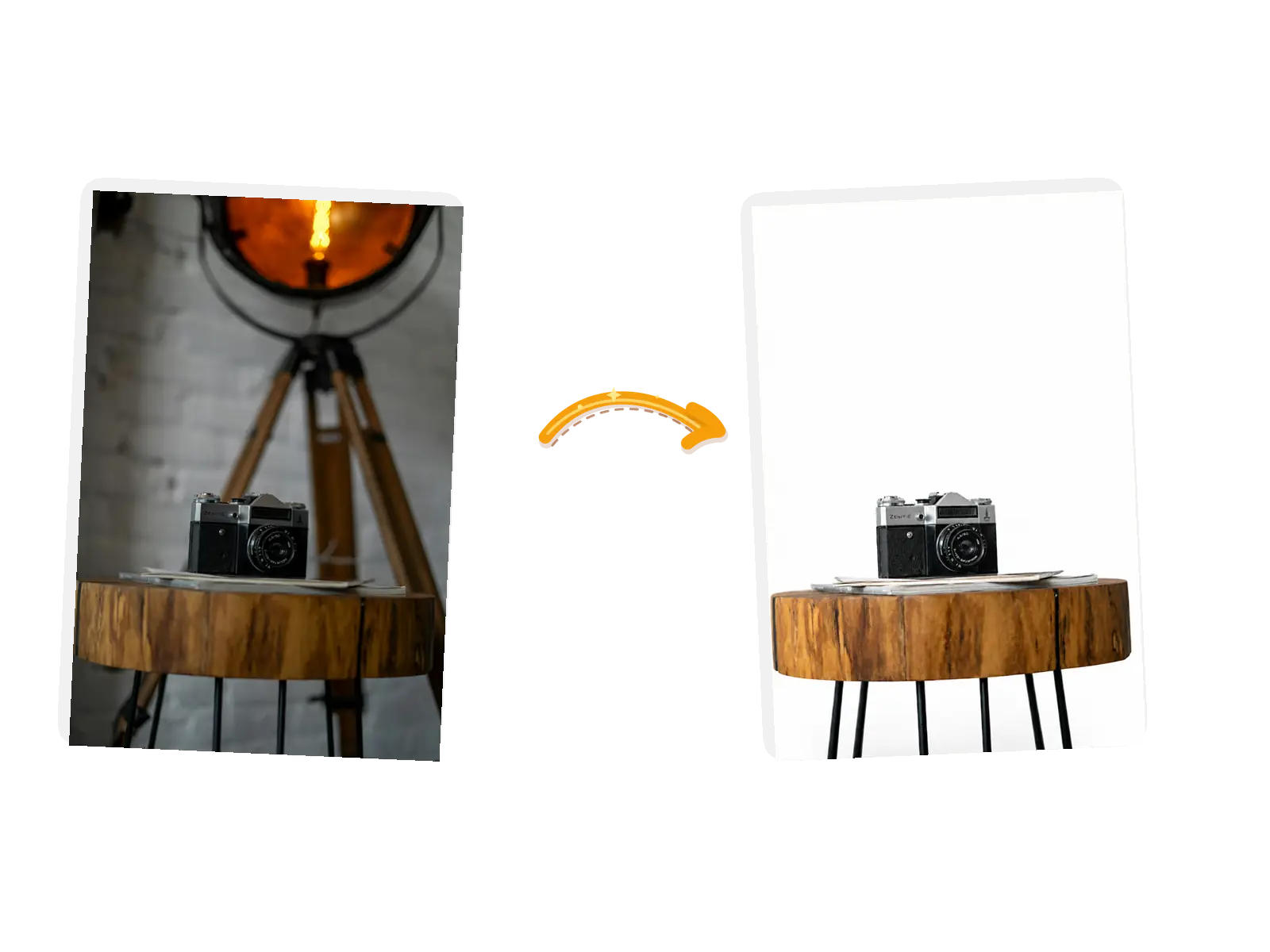
The camera edit: the cluttered room behind the stool becomes pure white while the camera and its shadow stay
Prompt

Remove the background and put the product on pure white; keep the product, its edges, and the soft contact shadow unchanged

What Makes This AI Background Remover Different

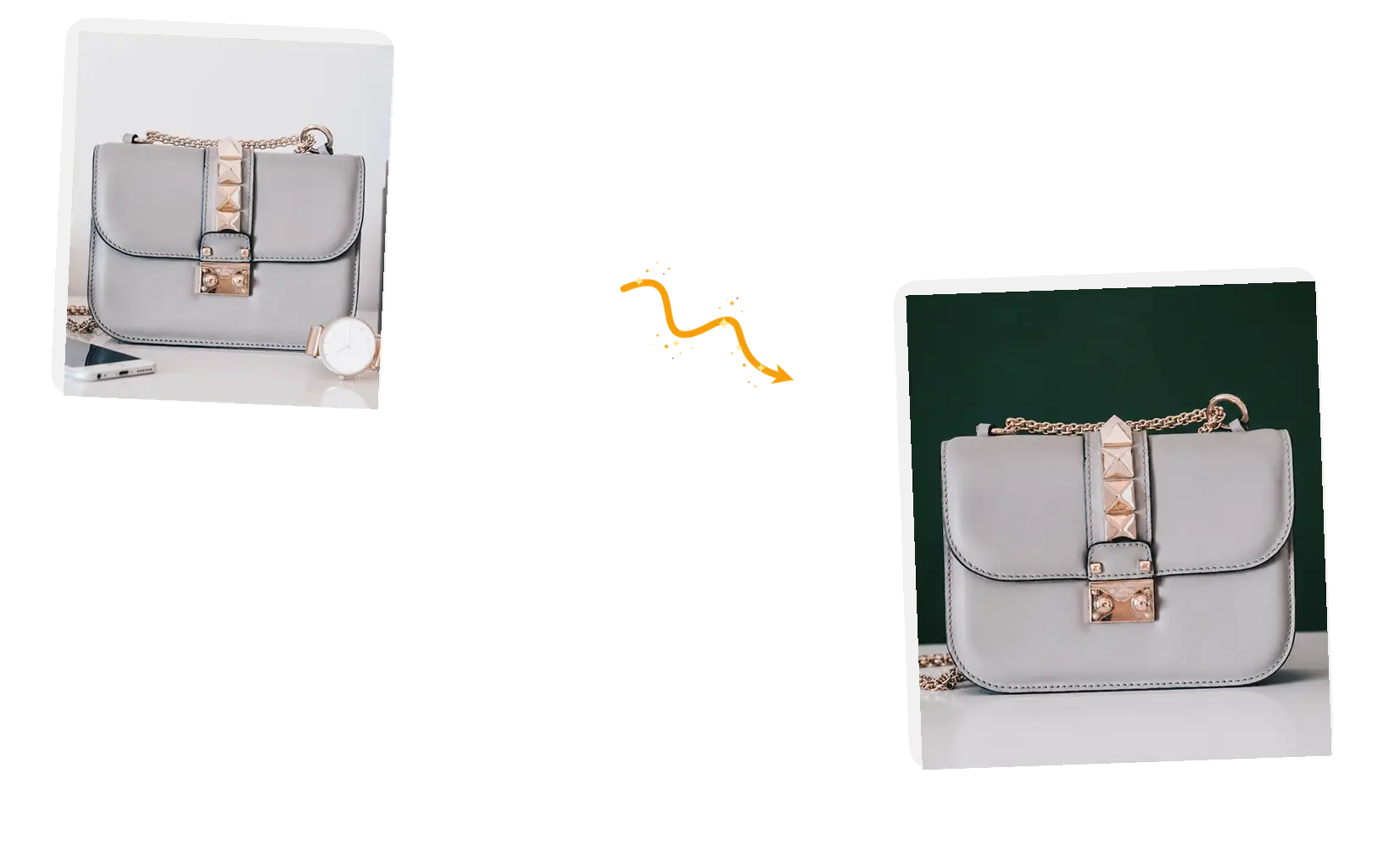
A grey handbag leaves the cluttered table behind for a deep green studio backdrop

Name what replaces the background

A cutout on its own still needs somewhere to go. Say it in the same sentence: pure white for a listing, a brand color for a campaign, a whole new scene for fun. The removal and the replacement arrive together, so the result is a finished picture, not a floating subject.
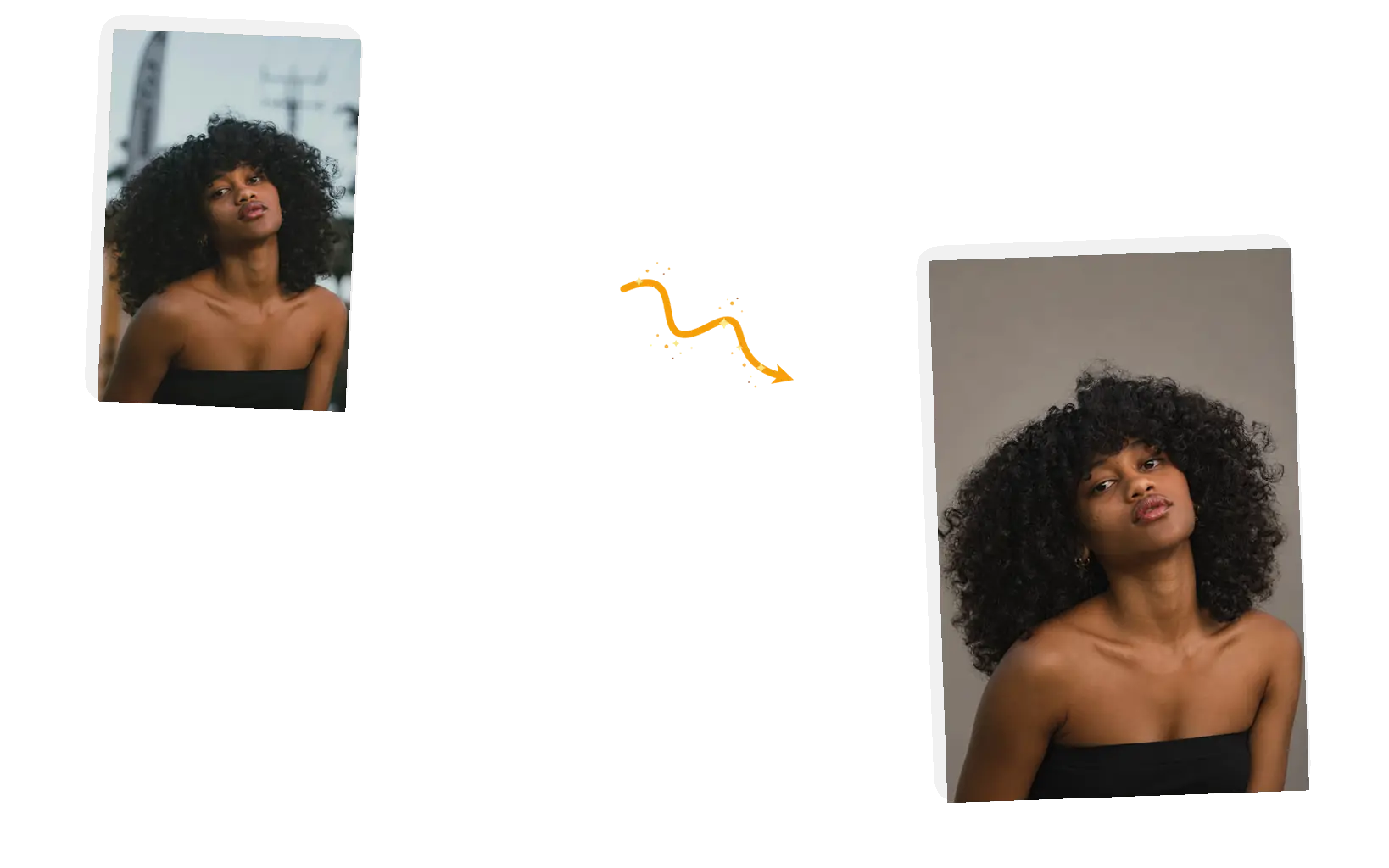
A woman with curly hair keeps every hair edge while the street behind her becomes a warm gray studio backdrop

Edges and shadows stay in your hands

Name what stays in the prompt: the flyaway hairs, the thin straps, the contact shadow under the subject. The model reads the keep-list while it repaints the backdrop, and generation can vary, so zoom in on the edges and rerun if one comes out rough.

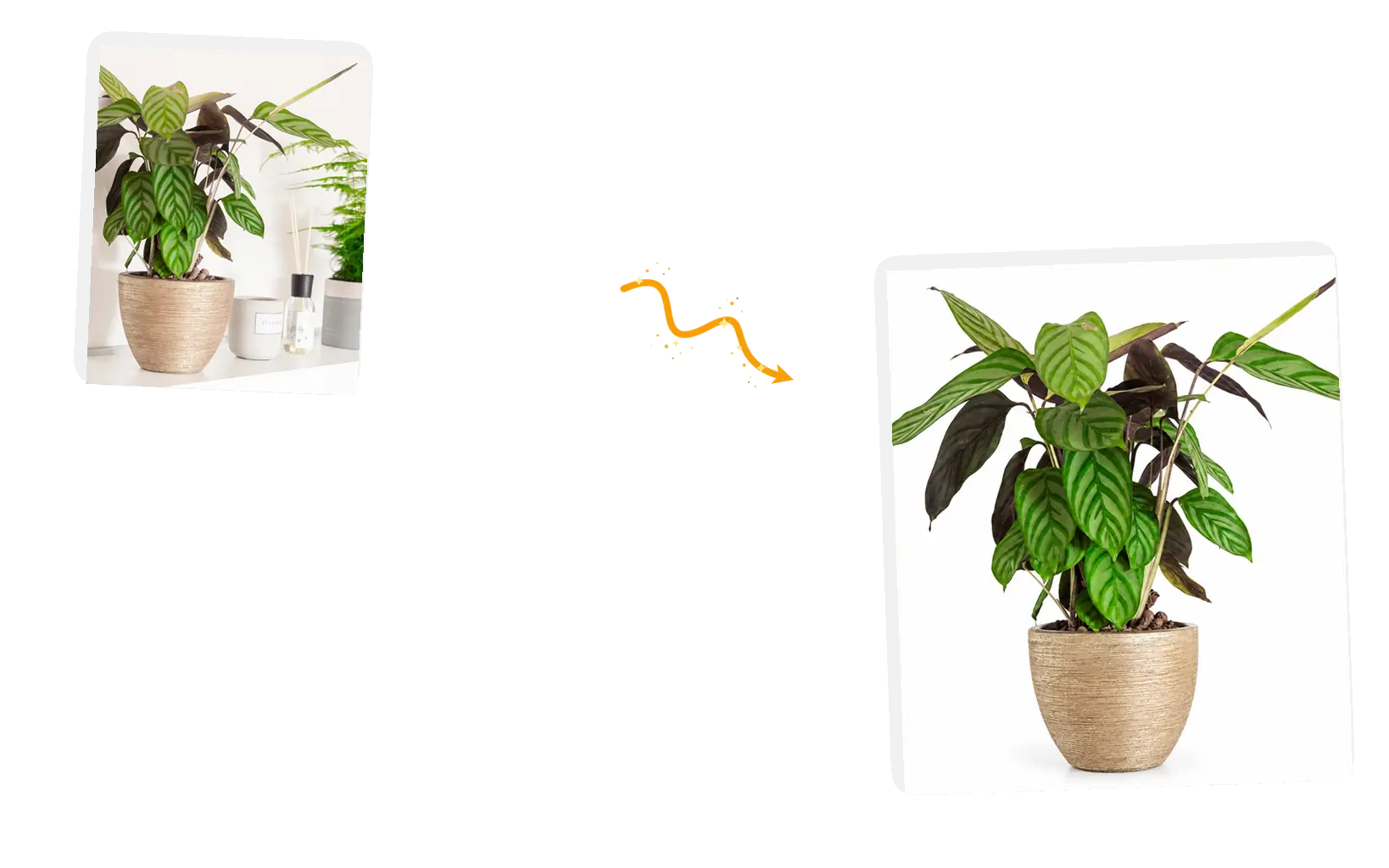
A potted plant leaves the crowded shelf behind for a clean white listing shot

Made for the jobs people actually bring

Marketplace main images, resell photos, pet portraits, profile shots: the same sentence covers them. Bring JPEG, PNG, or WebP files up to 20MB each, one photo per edit.

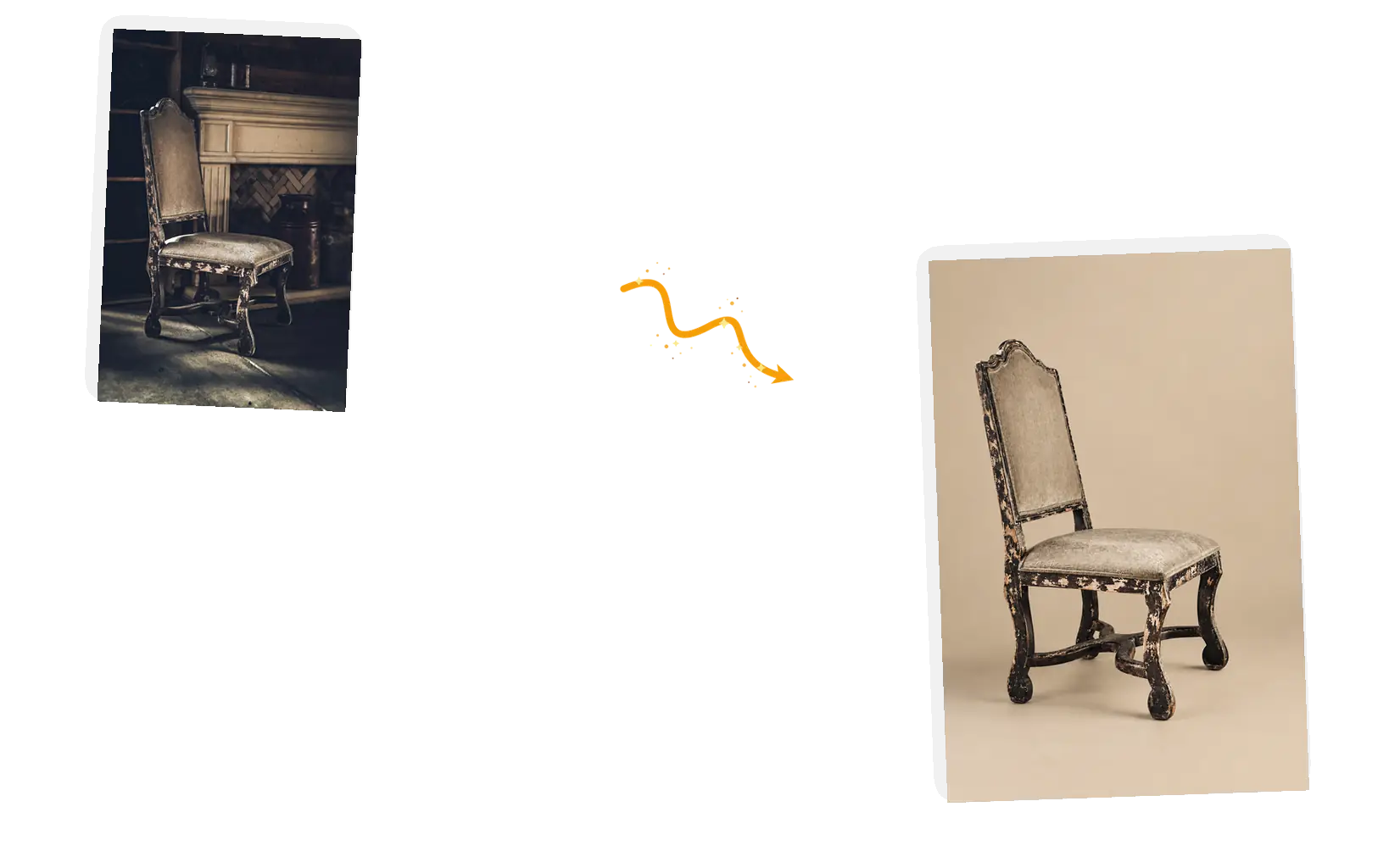
An antique chair from a dark rustic room lands on a light beige studio backdrop

The removal is not a dead end

Download the finished picture at full resolution, or keep working in the same workspace: turn the backdrop a different color, put the subject somewhere else, or send the result to the image text editor.

What Is the AI Background Remover?

The AI background remover is an image editor that erases whatever stands behind your subject: the cluttered room, the parked cars, the shelf of props. You write the removal as one sentence and name what takes its place, and the model repaints the picture while the subject, its edges, and its shadow stay as shot. The typical jobs are marketplace main images, resell listings, pet portraits, and profile photos that deserve a cleaner backdrop. One photo per edit, and the result is a complete picture on the backdrop you named rather than a transparent cutout. Results download at full resolution or move straight into the next instruction, like a different backdrop color or a new scene.

How to Use the AI Background Remover

Five steps from original photo to finished picture.

1

Upload your photo

Bring the picture as a JPEG, PNG, or WebP file up to 20MB. A clear subject with defined edges separates more cleanly than a blurry or dim original.

2

Say what replaces the background

Name the replacement and what stays: pure white for a listing, a studio gray for a portrait, a described scene for something else. The keep-list is part of the same sentence.

3

Choose the output

Keep the original aspect ratio, or pick a preset when the listing asks for one. The editor shows the credit cost before you generate.

4

Generate and check the edges

The background remover repaints the picture in place. Zoom in on hair, glass, and thin objects against the new backdrop before you call it done.

5

Use the result

Download at full resolution, or keep editing in the same workspace for a backdrop color change or the next instruction.

Why Use the AI Background Remover?

Skip the lasso and the rebuild

Manual cutouts mean pen paths, masks, and shadows rebuilt by hand; one-click removers hand you a floating subject and stop there. Here the removal and the replacement travel in one sentence, so the picture arrives finished.

One sentence, not a workflow

There is nothing to learn beyond the sentence you would say out loud: what to erase, what to keep, what to put behind. The ready-made suggestions show the pattern, and each run costs a known number of credits shown up front.

The edit keeps going

Download the finished picture at full resolution, then stay in the workspace if you want more: a different backdrop color, a scene change, or a price tag on the packshot.

How the AI Background Remover Compares

Three common ways to get a subject onto a clean backdrop, compared on what each one asks of you and where the prompt-driven removal fits.

DimensionManual cutoutOne-click background removersAI Background Remover
InputThe photo, plus pen paths, masks, and timeThe photo; the tool cuts the subject automaticallyThe photo, plus one sentence naming the replacement and what stays
Control over the resultFull control, at the cost of hand-built paths and shadow workThe cut, the edges, and the shadow are whatever the preset givesPrompt-level: name the new backdrop, keep the shadow, or drop it
OutputWhatever you export after rebuilding the scene yourselfA cutout with a transparent channel, usually at the tool's fixed export settingsA finished picture on the backdrop you named, at the original ratio and full resolution
Consistency across rerunsStable once built; every new photo repeats the manual workResults vary with the subject's edges; a rerun repeats the same presetThe keep-list holds subject and backdrop across reruns
Learning costHours of practice with selections, layers, and masksMinutes; the tool does the cutOne sentence; ready-made suggestions show the pattern
Result managementProject files you manage yourselfSaved in the tool's account or exported onceDownload it at full resolution, or keep editing in the same workspace

Tips for Better Background Removal Prompts

The prompt is the whole instruction: say what replaces the background, name what stays.

  • Name the replacement in the same sentence as the removal: pure white, a solid color, or a described scene.
  • Say what stays: the subject, its contact shadow, hair edges, glass reflections.
  • One photo per prompt; check hair, glass, and thin edges after each run and rerun with tighter wording.

Remove the background and replace it with [pure white / a color / a scene]; keep the [subject] and its [shadow, edges] unchanged.

A marketplace listing

Too vague

remove the background

More useful prompt

Remove the background and put the camera on pure white; keep the camera, the stool, and the soft contact shadow unchanged

A brand-color backdrop

Too vague

make the background green

More useful prompt

Replace the background with a deep forest-green backdrop; keep the handbag, its gold chain, and its contact shadow exactly unchanged

A new scene behind the subject

Too vague

change where I am

More useful prompt

Replace the street with a bright modern office interior; keep the person, the red jacket, and the backpack exactly unchanged

Who Uses the AI Background Remover

Ecommerce sellers

Marketplace main images call for a plain backdrop, and reshooting a catalog never fits the schedule. The AI background remover turns each photo you already have into a listing-ready shot, one upload at a time.

Resellers and secondhand sellers

Stock photographed on kitchen tables and floors can still sell the item. An AI background remover clears the clutter around the product so the listing looks like it came from a shop, not a spare room.

Pet owners and portrait takers

The best shots happen on the floor, in the park, mid-zoomies. The AI background remover lifts the subject out of the park and lands it on a clean studio backdrop, leash and crowds gone.

AI Background Remover FAQ

How the AI background remover works, what it outputs, and what it costs.

Upload one photo and write a sentence: what to remove, what replaces it, and what stays. The AI background remover reads that single instruction and returns a new picture with the erased area repainted. The result lands in the workspace where you download it or keep editing; a failed task refunds its credits automatically.

No. The background remover returns a finished picture with the removed area repainted in the backdrop you named, not a file with a transparent channel. If your design tool strictly needs an alpha cutout, a dedicated cutout tool is the better fit; if you need the subject on white, on a color, or inside a new scene, this does it in one step.

JPEG, PNG, or WebP files up to 20MB, one photo per edit. Up to five reference photos are supported when a second image helps describe the replacement. Clear subjects with defined edges, like products, pets, and people, separate more cleanly than blurry, dim, or motion-blurred originals.

The white background tool does one job: it puts your photo on white. This tool erases the background and lets you name any replacement in the same sentence, which can be white but can also be a brand color, a gradient, or a new scene. If you already know you want white, both tools get there.

Zoom into the trouble spots first: hair, glass, thin straps, and subjects that share a color with the old background are where results can vary. Rerun with tighter wording, name the edge you care about, ask for the shadow explicitly, and compare the two results. Credits come back automatically when a task fails.

Guests get 9 free credits and signed-in accounts get 15, refreshed every UTC day. They do not accumulate. A standard 1K edit costs 3 credits, so the daily allowance covers several removals at no cost, with no watermark on the results.

Try the AI Background Remover for Free

Bring one photo, name the backdrop, and keep the subject. The finished picture is one prompt away.