ImagEditorAI

AI Image Recolor: Change Colors with a Prompt

Name the object and the new color, and this AI image recolor tool repaints just that part of your photo. It can also pull a color from a reference photo, while the rest of the image stays as you left it.

  • No sign-up
  • Free daily credits
  • No watermark
0 / 1000

Example 1 of 3

Change a product's color

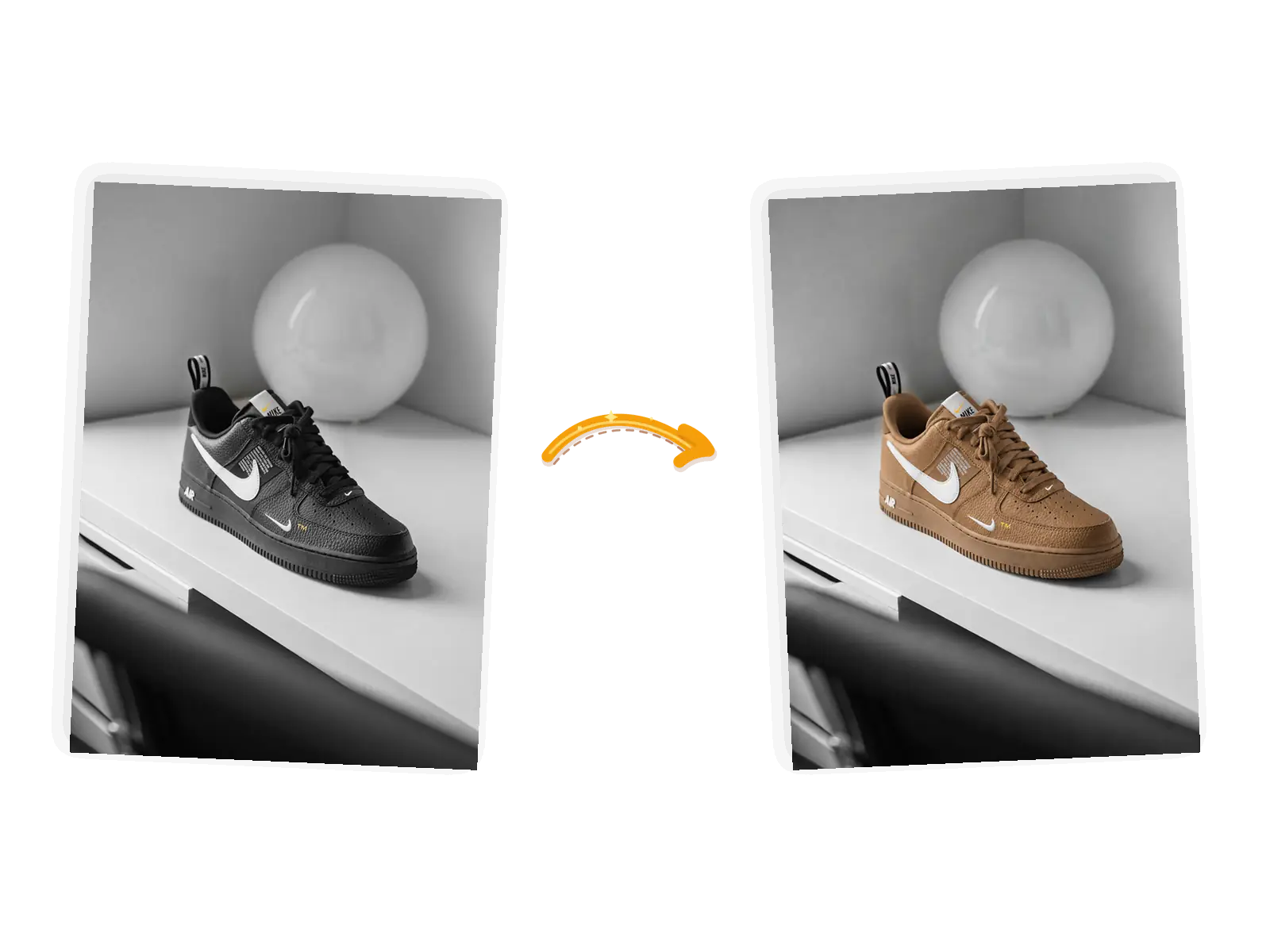
The product edit: the black sneaker turns tan while the white swoosh, the laces, and the desk stay
Prompt

Change the black sneaker to tan camel leather; keep the white swoosh, the laces, and the white desk exactly unchanged

What Makes This AI Image Recolor Tool Different

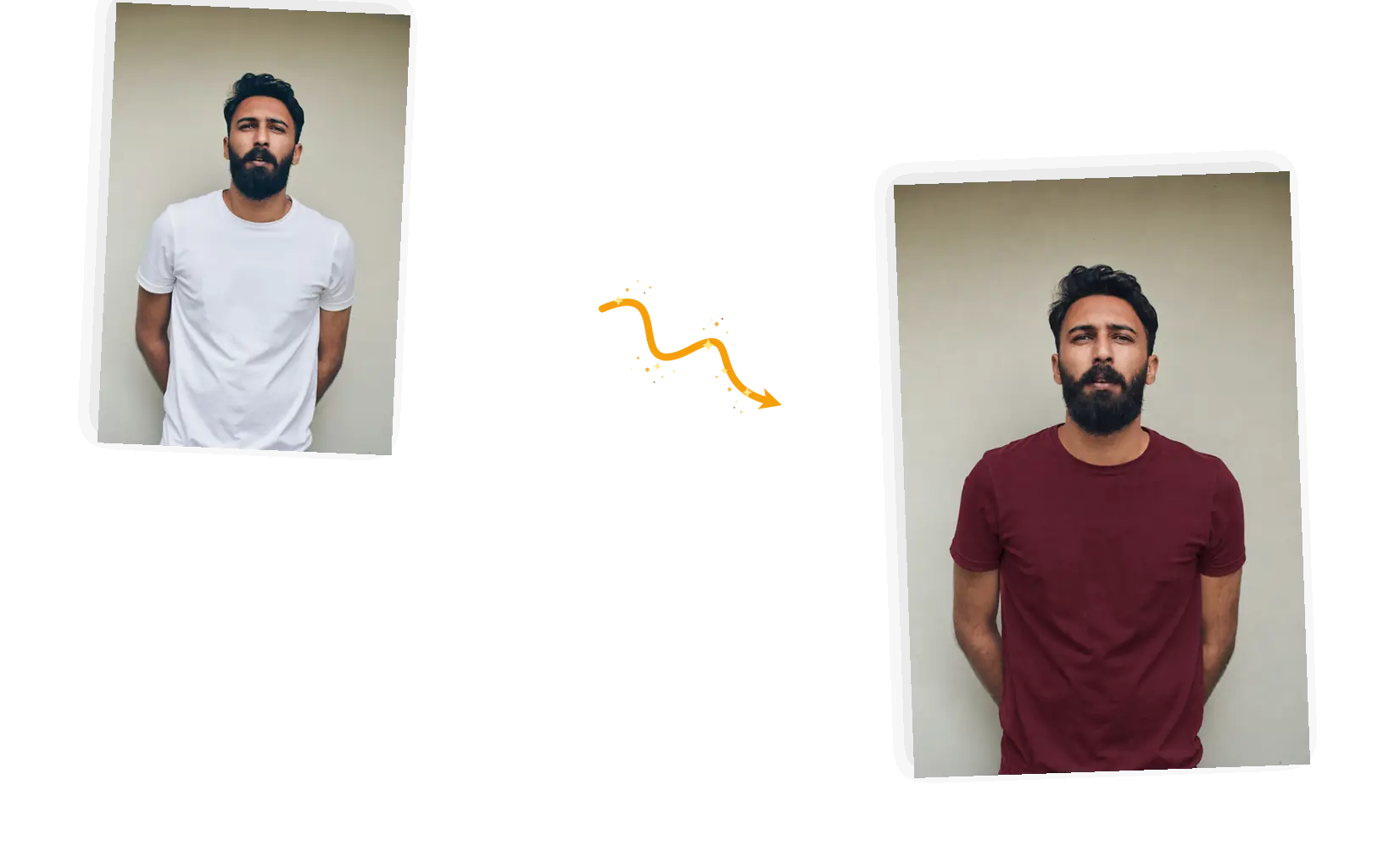
A white t-shirt turns burgundy while his face, beard, and the plain wall stay

Name the object, hold the rest

Say which object changes and the edit keeps to it; a keep-list guards the rest: face, skin tone, other garments, background. Generative color can drift a little, so compare with the original and rerun if something moves.
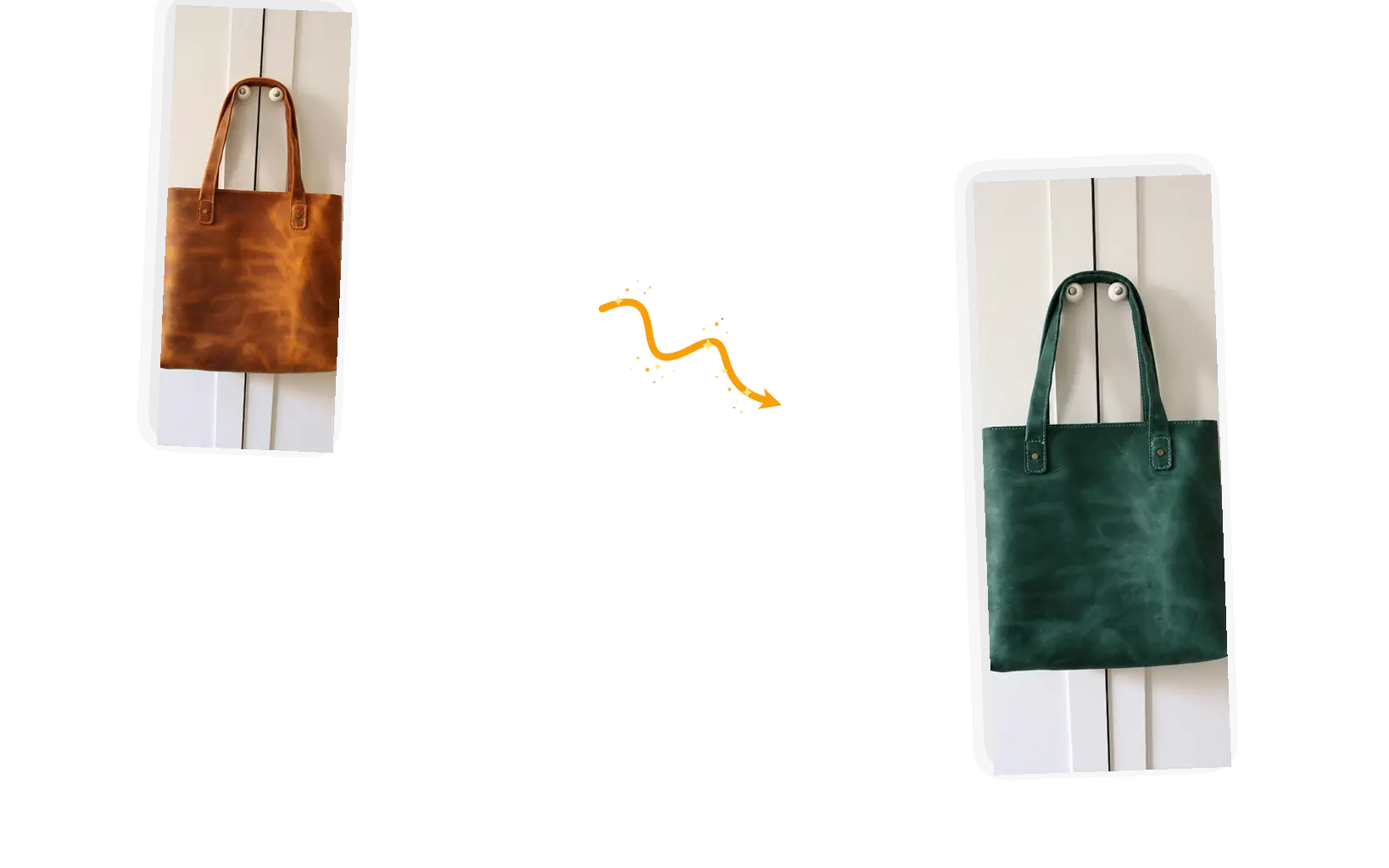
A brown leather tote takes on the dark green of a sofa in a second photo

Pull the color from another photo

Attach up to five reference photos and ask for a match: the sofa green, the paint swatch, last season's color. The recolor follows the reference instead of a guess, and the texture of your original object stays.

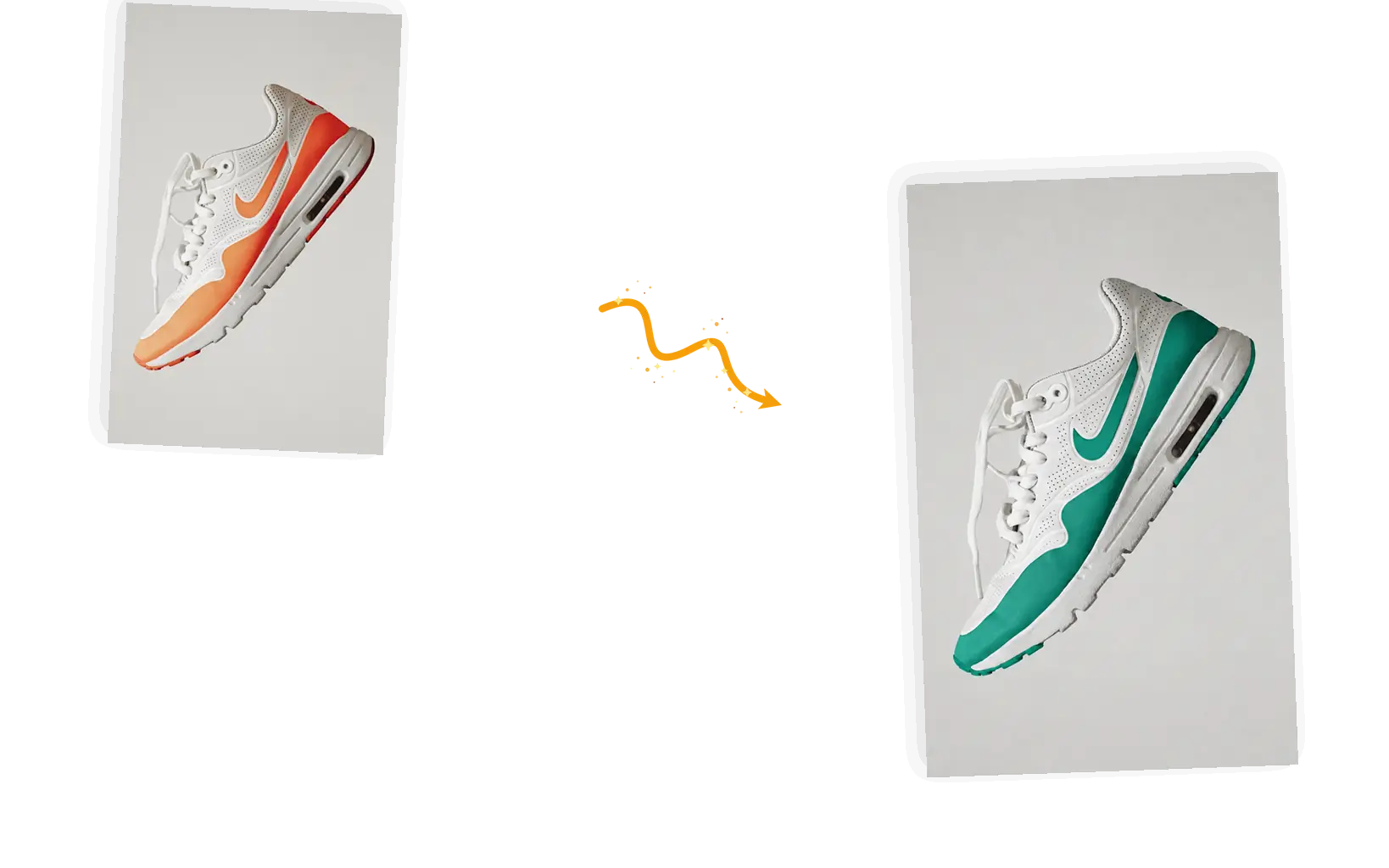
A white sneaker keeps its leather while the orange accents turn teal

Product colorways without a reshoot

One product photo can become every colorway a store needs. Run the same shot again with a different color named in the prompt and list them all from a single shoot. Each run costs 3 credits at the default 1K size.

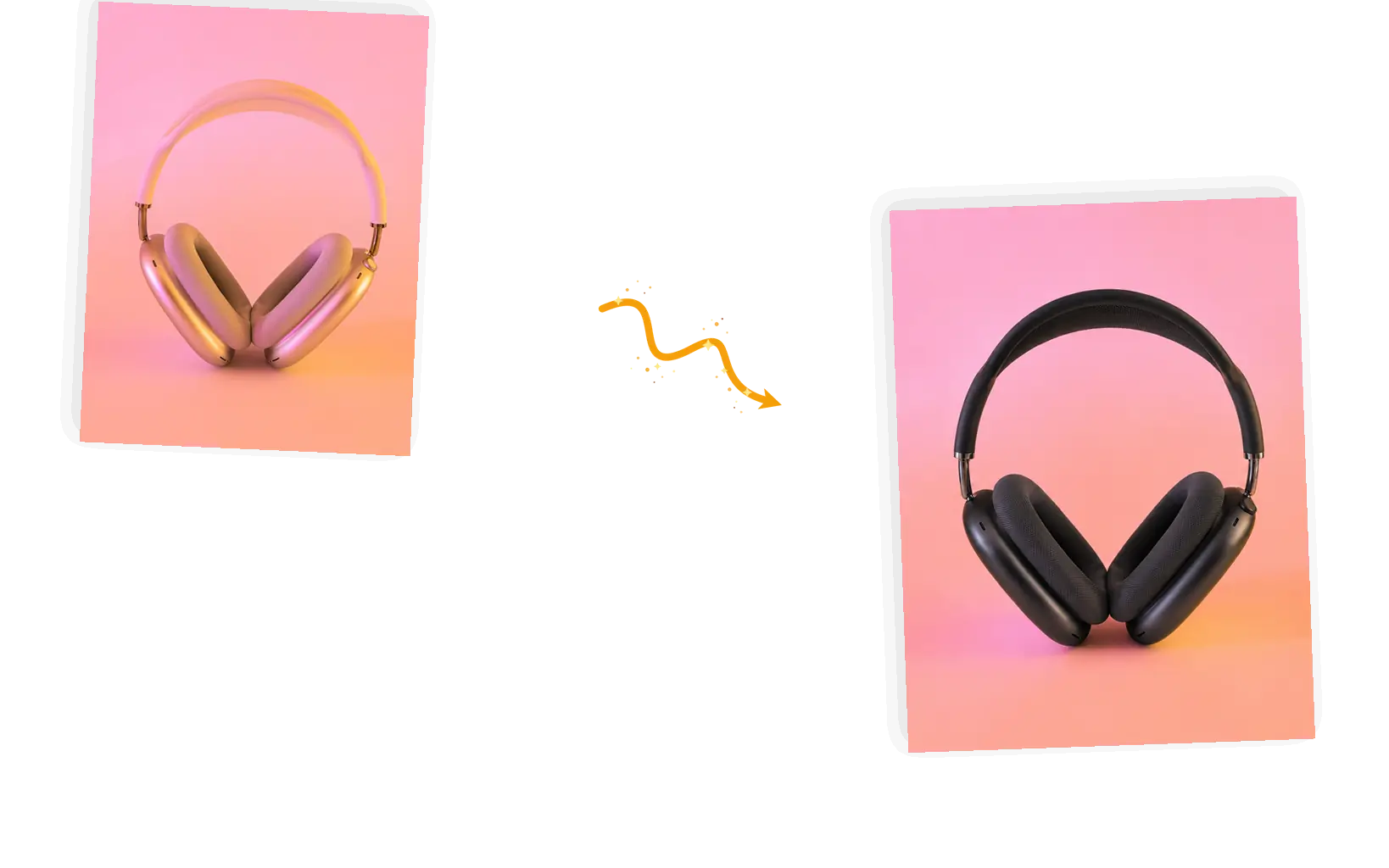
Pink headphones turn matte black while the pink background and its light stay

Rerun until the color sits right

Colors can shift at the edges, and dark-to-light changes may take a second run with tighter wording. Results can vary between runs, so rerun and keep the better one; every download is full resolution with no watermark, and a failed task returns its credits automatically.

What Is AI Image Recolor?

AI image recolor is an editing job that used to start with a selection mask: isolate the object, protect everything around it, then move the hue. Here you type the change instead. You upload one photo, name the object and the new color, and list what has to stay; adding a reference photo turns "a green like this" into the green from your own sofa photo. The model repaints the colored surfaces in place, so folds, texture, and light come through the new color instead of flattening under it. It is still a generative edit: fine textures and nearby colors can bleed, deep colors turning pale sometimes need a second run, and the result is worth a zoom before you ship it. Sellers use it for product colorways; everyone else uses it to see a jacket, a wall, or a car in the color they are actually considering.

How to Use the AI Image Recolor Tool

Five steps from one photo to a recolored version.

1

Upload the photo

Bring the picture as a JPEG, PNG, or WebP file up to 20MB. Clear edges and even light on the object you want to change give the model a cleaner target.

2

Describe the color change

Name the object and the color: "change the sofa to forest green". List what stays: the wood frame, the wall, the plant. To match a color you already have, attach that photo as a reference.

3

Choose the output

Keep the original aspect ratio, or pick a preset when the platform asks for one. The editor shows the credit cost before you generate.

4

Generate and compare

The recolor lands in the workspace next to the original. Zoom in on edges and texture before you download; rerun with tighter wording if the color spread or drifted.

5

Use the result

Download at full resolution, or keep editing in the same workspace: another color on the same object, or an entirely different edit.

Why Use the AI Image Recolor Tool?

Object-level color, not a filter over the frame

Preset color changers wash one tone across the whole picture. Here the color lands on the object you named: the jacket changes, the background and skin tones stay. Folds and texture show through the new color because the model repaints the surfaces rather than overlaying them.

A sentence instead of a masking session

The manual route is selections, masks, and hue sliders per object. Here you describe the change in one line and keep-list the rest; the ready-made suggestions show the pattern, and the editor shows the credit cost before each run.

The result keeps working

Download the recolored photo at full resolution with no watermark, or stay in the workspace and run the next color, a crop, or a different edit on the same picture.

How the AI Image Recolor Tool Compares

Three ways to change the color of an object in a photo, compared on what each one asks of you and where the prompt-driven recolor fits.

DimensionManual color editingOne-tap color changersAI Image Recolor
InputThe photo plus mask-making time in an editorOne photo; the preset decides the lookThe photo, a sentence naming the object and color, and optionally up to five reference photos
Control over the resultPrecise where the mask is good; slow everywhere elsePreset palettes applied across the whole framePrompt-level: name the object, the color, and everything that stays
Matching a reference colorPossible with eyedroppers and adjustment layers, but slowPresets pick from a fixed palette, not from your photoAttach the reference photo and ask the result to match it
OutputWhatever you export after masking and adjusting yourselfA recolored photo at the tool's fixed export settingsThe recolored photo at the original ratio and full resolution, downloadable and watermark-free
Consistency across rerunsThe same mask always gives the same colorThe same preset every time, whatever it doesGenerative runs can differ a little; rerun and keep the better one
Learning costHours with selections, masks, and adjustment layersMinutes; the preset does the decidingOne sentence; ready-made suggestions show the pattern

Tips for Better Recolor Prompts

The prompt is the whole instruction: name the change and guard the rest.

  • Name the object and the color: "change the jacket to olive green", not "make this look better".
  • List what stays: the face, skin tone, hair, other garments, the background. The keep-list is what holds the edit to one object.
  • Change one thing per run. Dark colors turning pale can take a second pass, so zoom in on edges and texture, then rerun with tighter wording if the color spread.

Change the [object] to [color]; keep the [everything else that matters] unchanged.

A product in a new color

Too vague

change the color of my shoe

More useful prompt

Change the black sneaker to tan leather; keep the white sole, the laces, and the background unchanged

A color from another photo

Too vague

make my bag this color

More useful prompt

Change the tote to the green of the sofa in the second photo; keep the leather texture and stitching unchanged

A dark color turned pale

Too vague

make the black shirt white

More useful prompt

Change the black t-shirt to cream; keep the fabric folds, the print, and his pose unchanged

Who Uses the AI Image Recolor Tool

Online sellers

One shoot, every colorway. Sellers use AI image recolor to turn a single product photo into the full color lineup, then list the versions side by side and promote the one buyers actually click, without paying for a reshoot.

Shoppers and stylists

Before you buy, see it another way. AI image recolor shows the same jacket in the color you are considering, or matches an outfit to a palette pulled from a reference photo, with the fabric still reading as fabric.

Designers and content creators

Mood boards and drafts need options, not reshoots. An AI image recolor pass over one frame gives a thumbnail, a poster, or a campaign draft in every candidate color while the subject and composition hold still.

AI Image Recolor FAQ

How AI image recolor works, how reference matching behaves, and what it costs.

You upload a photo and tell the AI image recolor what changes: the object, the new color, and what stays. The model repaints the named surfaces and leaves the keep-list alone; the result lands in the workspace for download or more editing, and a failed task refunds its credits automatically.

Yes. Attach the photo as a reference (up to five are supported) and name it in the prompt: "change the tote to the green of the sofa in the second photo". The match works best when the reference color is clear and evenly lit; results can vary, so rerun if the color lands off.

JPEG, PNG, or WebP files up to 20MB, one photo per edit. Up to five reference photos are supported when a color needs to come from somewhere else. Objects with clear edges and even light recolor more cleanly than ones lost in shadow or blur.

Results can vary where colors sit close together or texture is fine: lace, fur, gradients, a dark object on a dark background. Rerun with a tighter keep-list that names the neighbors ("keep the laces white"), and try a smaller jump in lightness for dark-to-light changes. Zoom in and compare runs; credits come back automatically when a task fails.

No. Recoloring changes a color that is already there: the blue jacket becomes green. Colorizing adds color to a black-and-white photo, which is a different job with a different tool. If your photo is black and white, a colorizer is the better first step.

Guests get 9 free credits and signed-in accounts get 15, refreshed every UTC day. They do not accumulate. A standard 1K edit costs 3 credits, so the daily allowance covers several recolors at no cost, with no watermark on the results.

Try the AI Image Recolor Tool for Free

Bring one photo, name the object and the color, and keep everything else. The recolored version is one prompt away.