
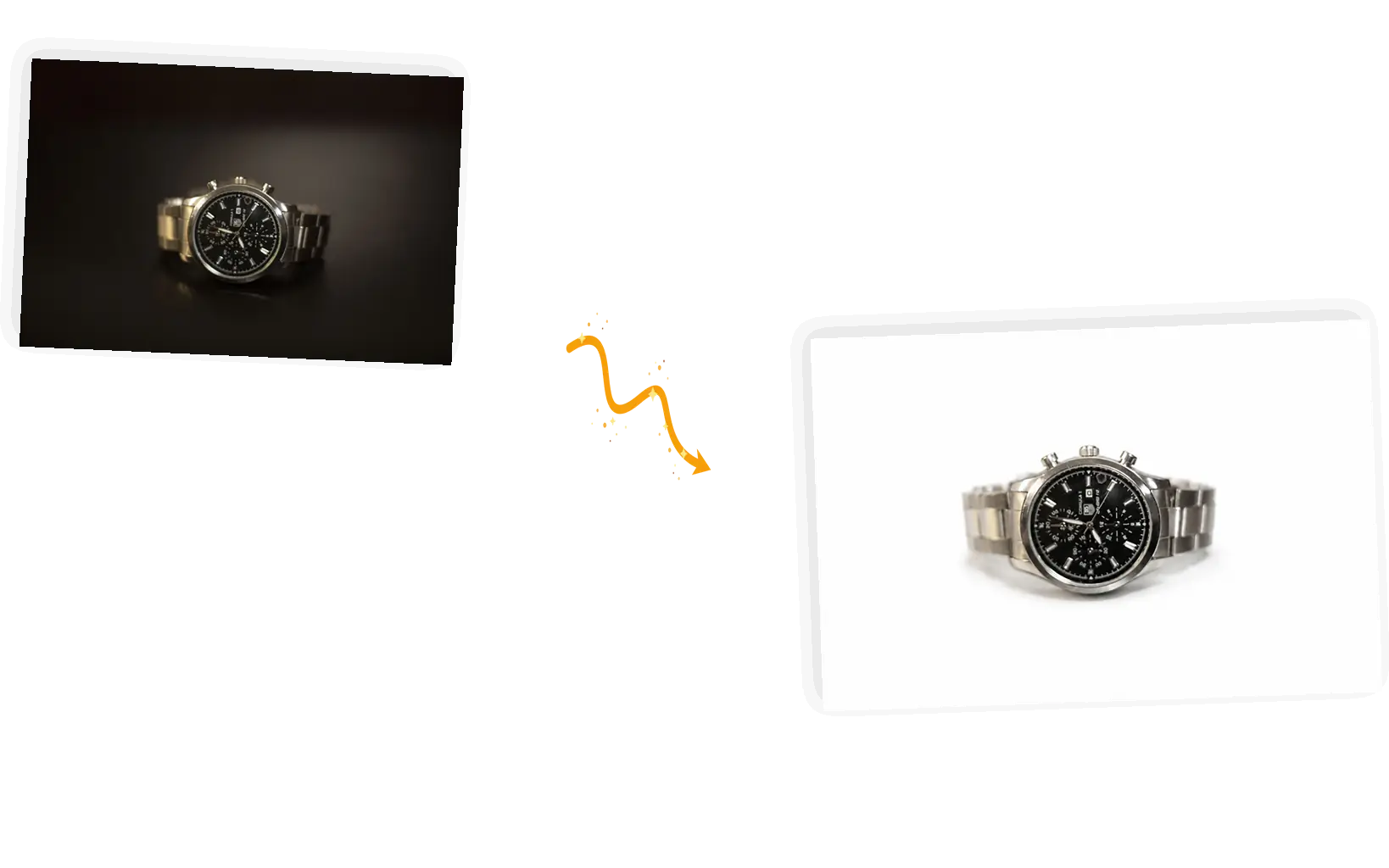
One sentence swaps the backdrop
Ask for a white background and name what stays: the subject, the edges, the shadow. The tool reads that keep-list inside the same prompt, so the swap and the protections travel together.
Upload the photo, ask for a clean white backdrop in one line, and name what stays. The white background tool repaints everything behind your subject and returns the finished picture.
Example 1 of 3
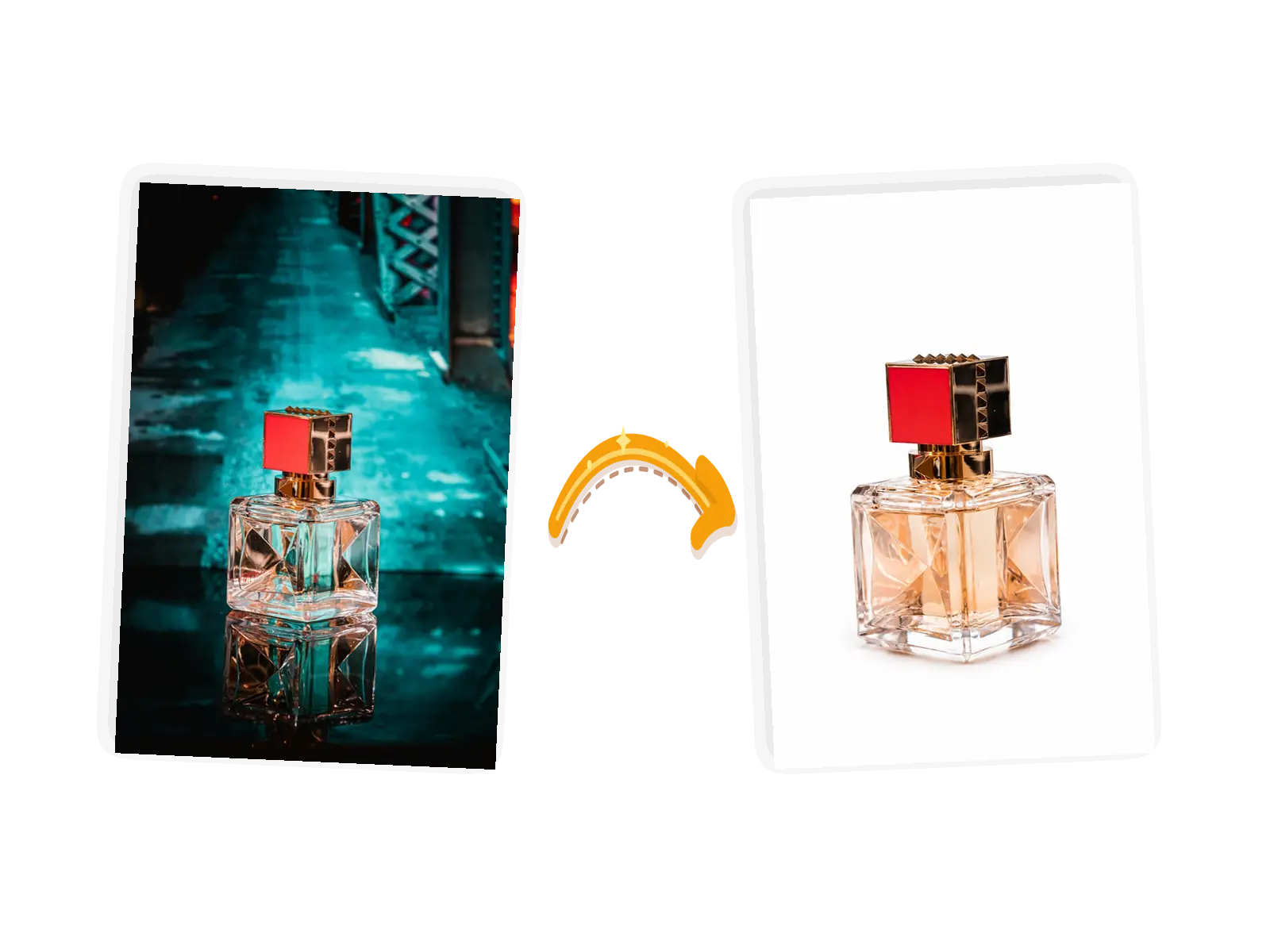
Replace the background with pure white; keep the bottle, its glass reflections, and the soft shadow unchanged
Ask for a white background and name what stays: the subject, the edges, the shadow. The tool reads that keep-list inside the same prompt, so the swap and the protections travel together.
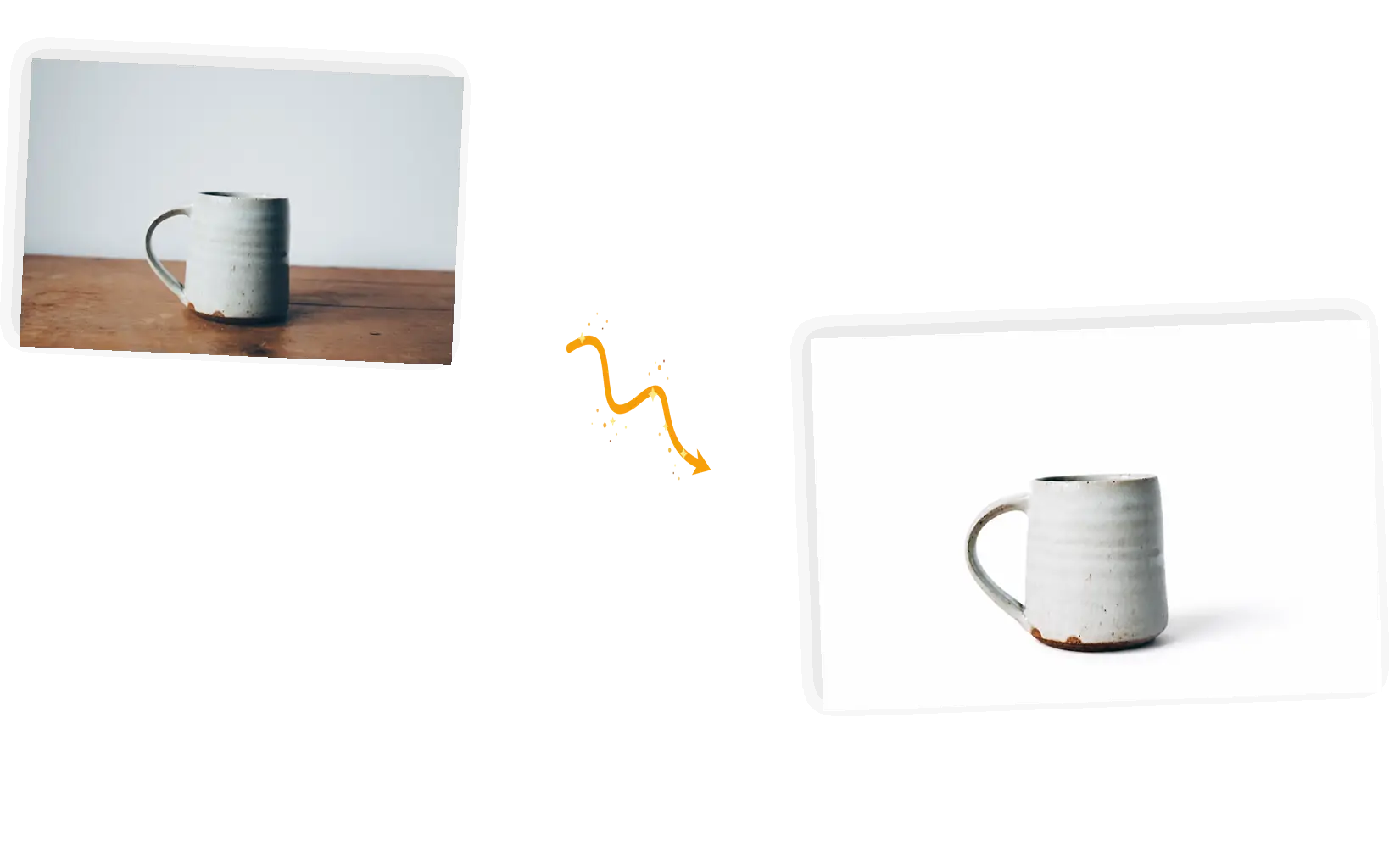
A cutout with no shadow looks like it floats. Name the natural contact shadow in your prompt to keep it, or ask for none when the listing wants a flat packshot. Generation can vary, so check the result and rerun if the shadow goes missing or turns harsh.
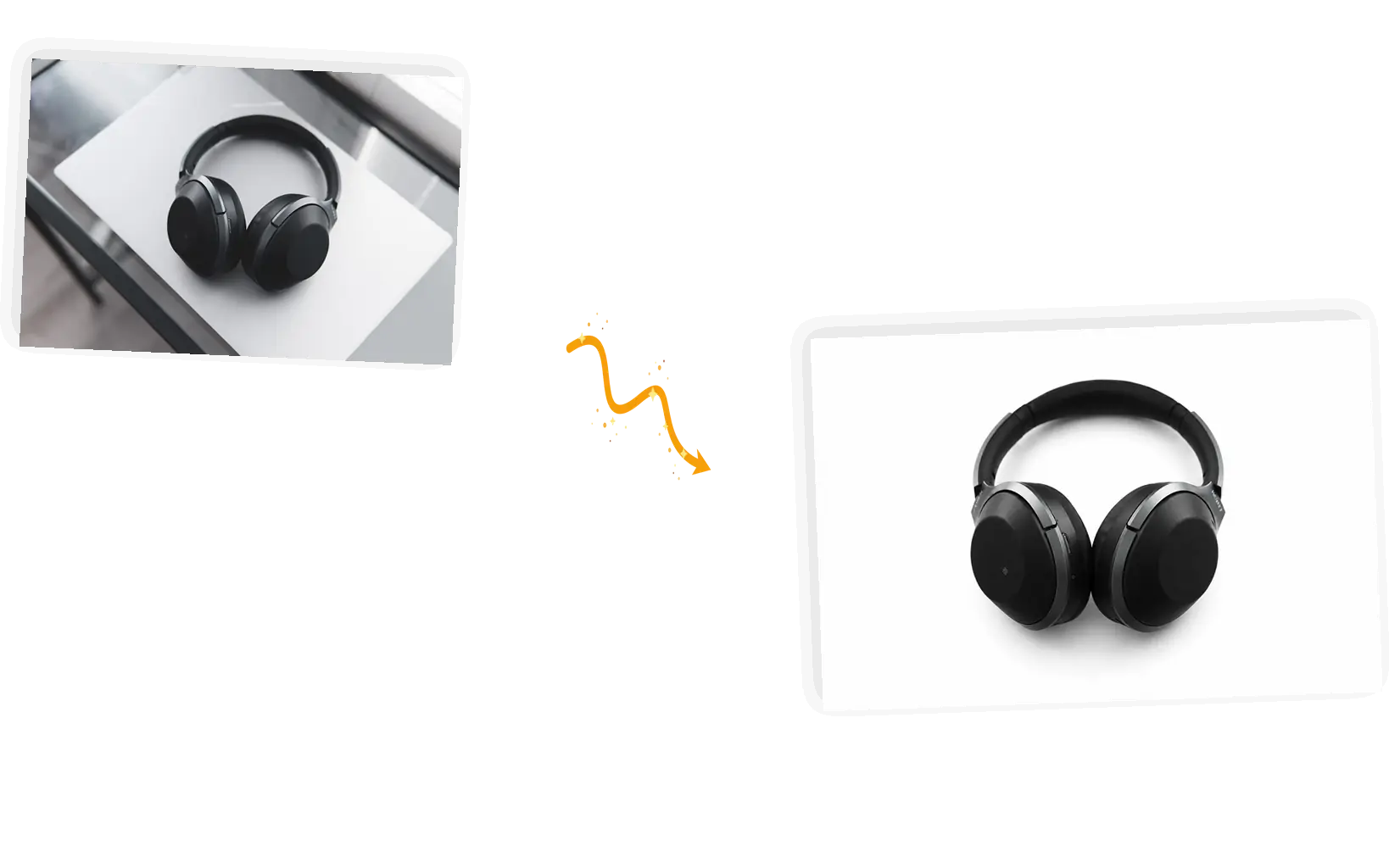
Marketplace main images, catalog pages, profile and document photos: the same swap covers them. Bring JPEG, PNG, or WebP files up to 20MB each, one photo per edit.
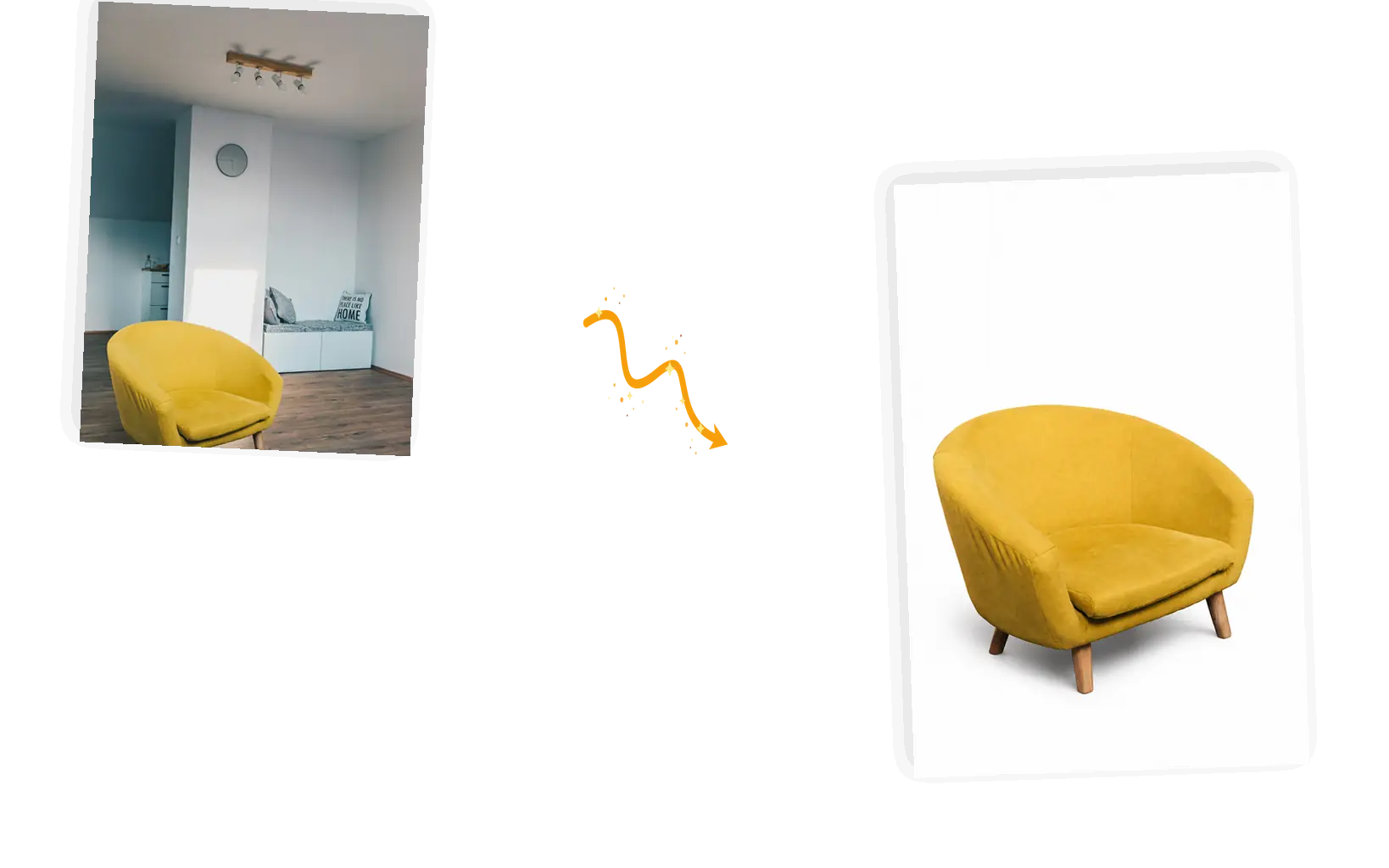
The result downloads at full resolution or stays in the workspace for the next instruction: a different backdrop color, a product scene, or a text change.
The white background tool is an AI editor that replaces whatever stands behind your subject with a clean white backdrop. Upload a product shot taken on a desk, a floor, or a windowsill, write one sentence asking for white, and the model repaints the backdrop while the subject, its edges, and its shadow stay as shot. The typical jobs are marketplace main images, catalog sheets, and profile or document photos that call for a plain backdrop. Because the swap is prompt-driven, you decide what happens to the shadow: keep the natural contact shadow for a grounded look, or drop it for a flat packshot. Each edit handles one photo at a time; there is no batch queue. Results download at full resolution or move straight into the next instruction, like a new backdrop color or a product scene.
Five steps to put a photo on a white background.
Bring the picture as a JPEG, PNG, or WebP file up to 20MB. Sharp subject edges and even light make the swap cleaner than blurry or dim originals.
Say how white you need it: pure white for a marketplace listing, a softer white for anything else. Name what stays: the contact shadow, glass reflections, hair detail.
Keep the original aspect ratio, or switch to a square when the listing asks for one. The editor shows the credit cost before you generate.
The white background tool repaints the backdrop in place. Zoom in on hair, glass, and white products against the new white before you call it done.
Download at full resolution, or keep editing in the same workspace for a backdrop color change or the next instruction.
A white sweep, softboxes, and a reshoot schedule cost an afternoon; one sentence costs a fraction of that. The white background tool keeps the original photo's light on your subject instead of restarting from a studio setup.
Manual cutouts mean drawing paths by hand and rebuilding shadows. Here you write the swap and the keep-list as one sentence, and the suggestions show the pattern.
Download at full resolution, then keep going in the same workspace: turn the backdrop gray, add a scene, or send the packshot to the image text editor for a price change.
Three common ways to get a photo on a white background, compared on what each one asks of you and where the prompt-driven swap fits.
| Dimension | Manual cutout | One-click background removers | White Background Tool |
|---|---|---|---|
| Input | The photo, plus pen paths, masks, and time | The photo; the tool cuts the subject and fills white automatically | The photo, plus one sentence naming the white backdrop and what stays |
| Control over the result | Full control, at the cost of hand-built paths and shadow work | The cut, the white point, and the shadow are whatever the preset gives | Prompt-level: keep the contact shadow, drop it, or ask for pure white |
| Output | Whatever you export after rebuilding the shadow yourself | A flat white fill, usually at the tool's fixed export settings | The original aspect ratio kept, with high-resolution download |
| Consistency across edits | Stable once built; every new photo repeats the manual work | One-click results vary with the subject's edges | The keep-list holds subject and shadow across reruns |
| Learning cost | Hours of practice with selections, layers, and masks | Minutes; the tool does the cut | One sentence; ready-made suggestions show the pattern |
| Result management | Project files you manage yourself | Saved in the tool's account or exported once | Download it, or keep editing in the same workspace |
The prompt is the whole instruction: say how white, name what stays.
Replace the background with [pure white]; keep the [subject], its [shadow, reflections] unchanged.
Too vague
“make the background white”
More useful prompt
“Replace the dark table with pure white; keep the watch and the soft shadow under the band unchanged”
Too vague
“cut the mug out”
More useful prompt
“Put the cream mug on a clean white background; keep its outline, glaze, and soft shadow crisp”
Too vague
“white background please”
More useful prompt
“Replace the background with an even white backdrop; keep the face, the hair edges, and the jacket exactly unchanged”
Marketplace main images call for a plain backdrop, and reshooting a catalog is not realistic at scale. The white background tool turns each existing photo into a listing-ready packshot the same day.
Stock photographed on tables and floors can still look professional. The white background tool evens out a shop catalog without a studio, one photo at a time.
Team pages, application portals, and ID forms often ask for a plain backdrop. The white background tool cleans up the surroundings while the face and hair edges stay as shot.
Quick answers about the white background tool, before you run the first edit.
Upload the photo, describe the white backdrop and what stays, and the white background tool returns the finished picture in the same workspace.