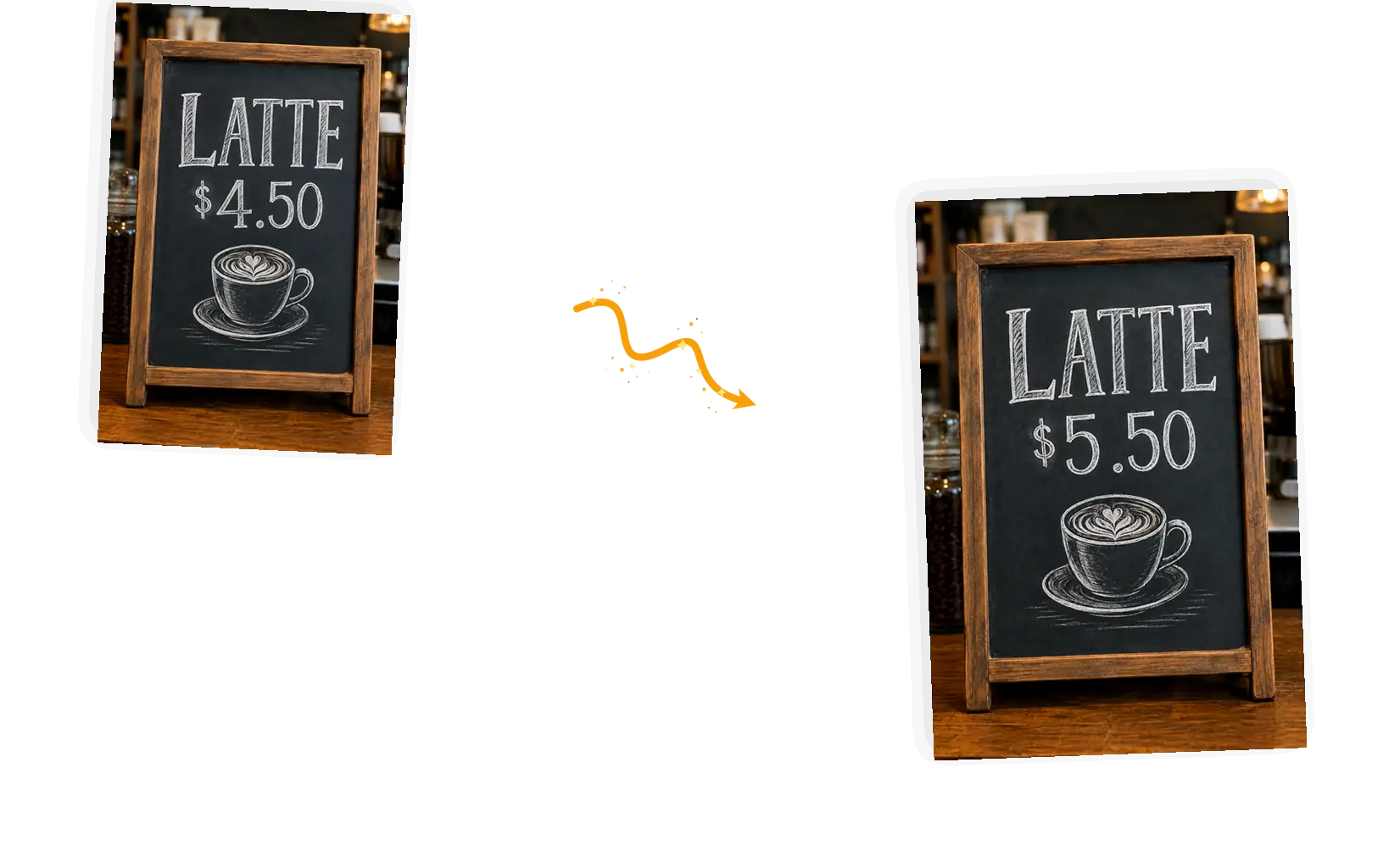
Describe the change in one sentence
Quote the existing text, write the replacement, and list what must stay the same. The image text editor follows the sentence you wrote, so the wording, the placement, and the keep-list all travel in one prompt.
Use the image text editor to edit text in an image. Upload the picture, quote the words you want changed and write the replacement, then name the colors, layout, and surrounding details to preserve.
Example 1 of 3
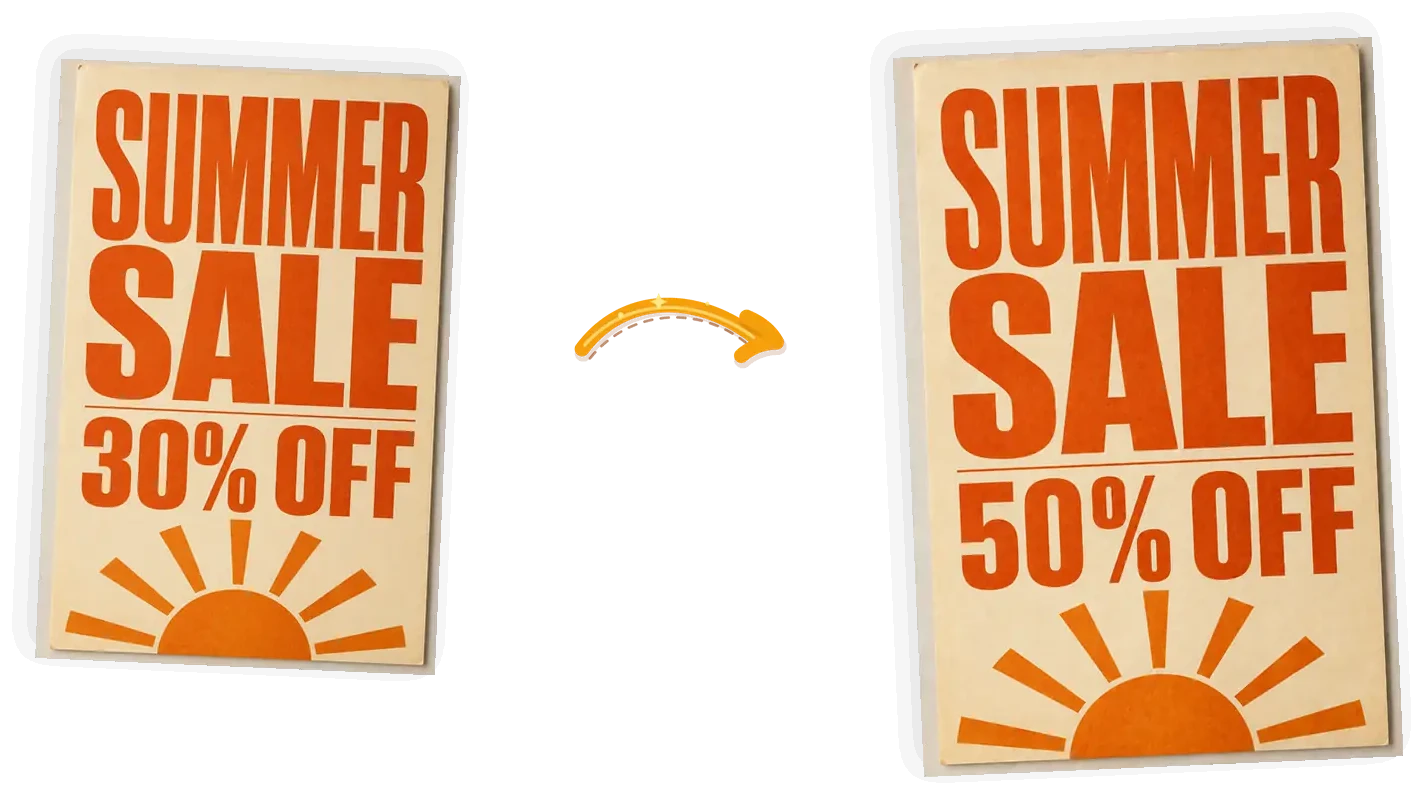
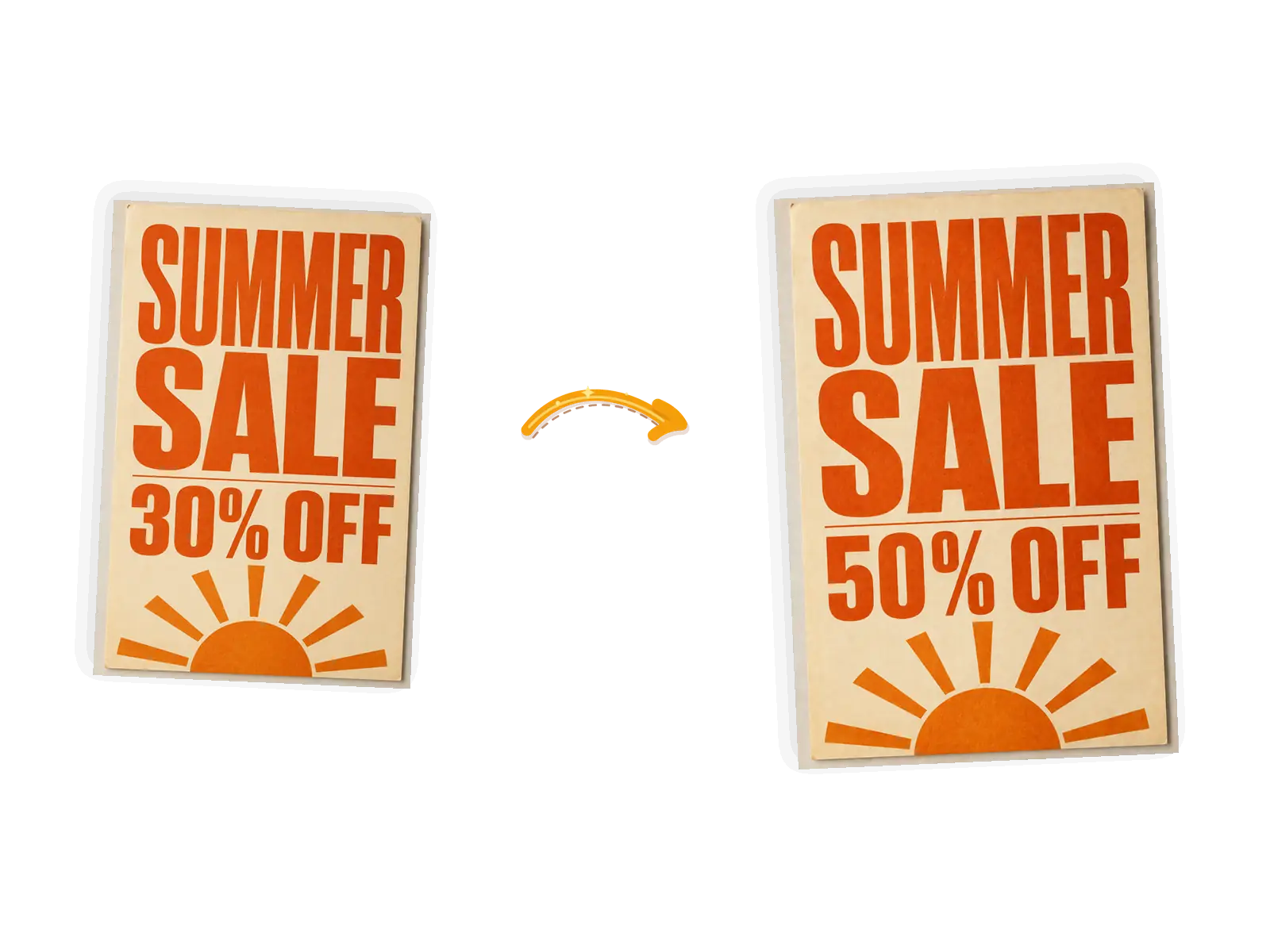
Replace the text '30% OFF' with '50% OFF'; keep the headline, colors, and paper texture unchanged
Quote the existing text, write the replacement, and list what must stay the same. The image text editor follows the sentence you wrote, so the wording, the placement, and the keep-list all travel in one prompt.
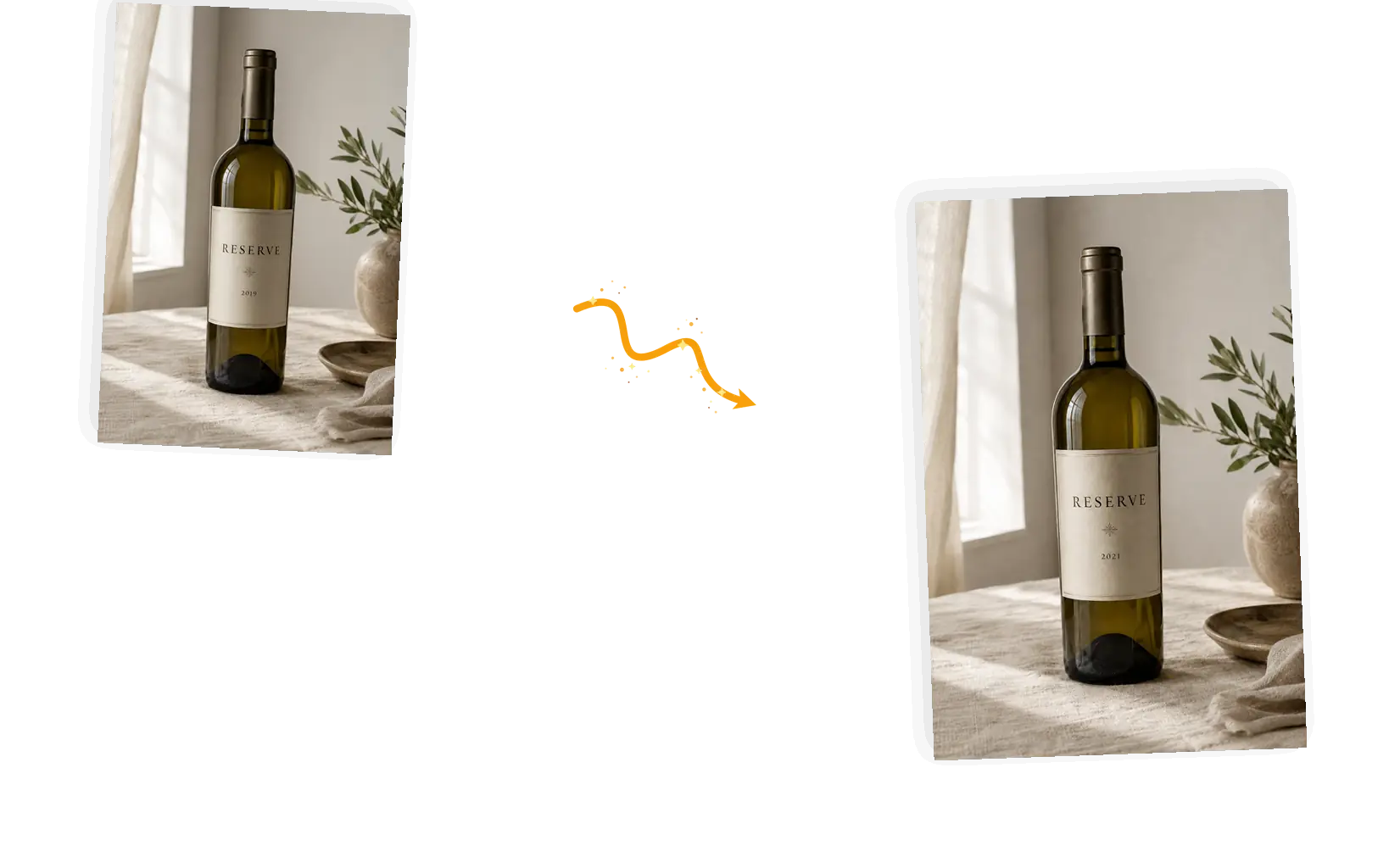
The image text editor redraws the text region and matches the surrounding type, color, and spacing. Generation can still vary, so zoom in on the result and rerun with tighter wording if a letter drifts.
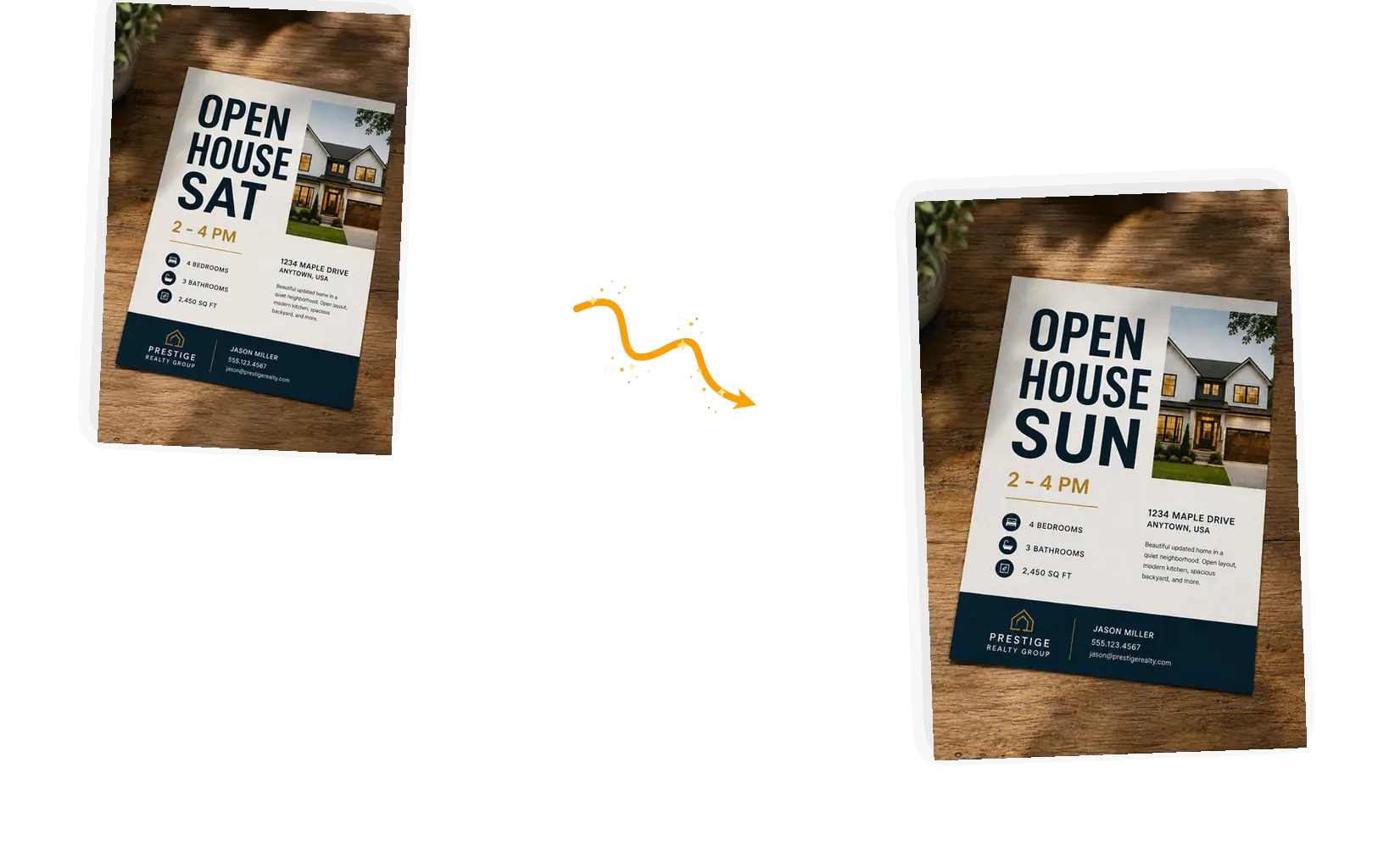
Bring JPEG, PNG, or WebP files up to 20MB each. Short, legible wording on a clean surface gives the image text editor the most to work with.
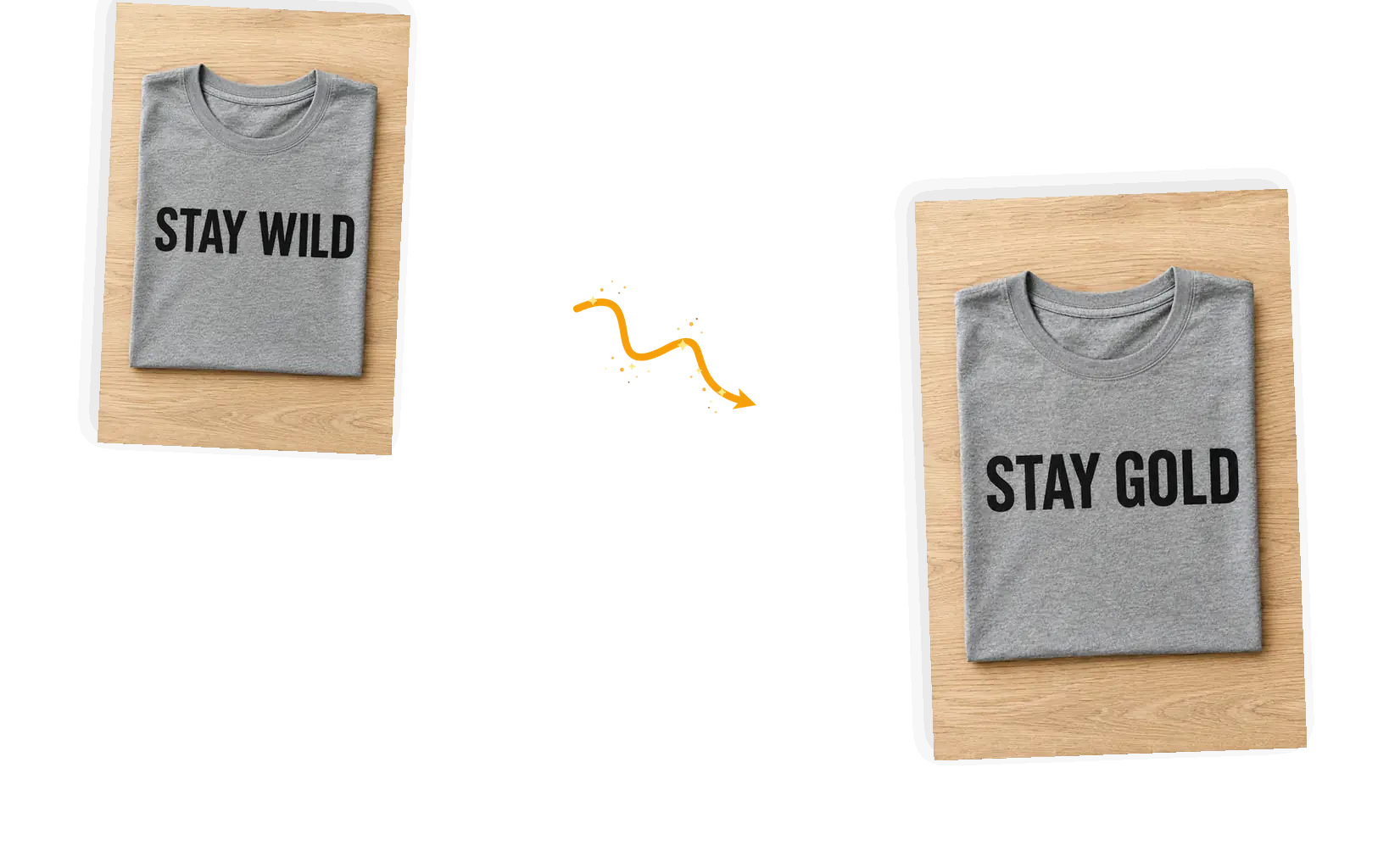
Download the result at full resolution or continue in the same workspace: fix another line, adjust the background, or prepare the picture for print.
The image text editor is an AI tool that changes wording already printed in a picture: the price on a poster, the flavor on a label, the date on a ticket, the headline on a screenshot. You upload the picture and describe the change in one sentence, quoting the old text and the new one, and the model redraws that region while matching the type, color, and spacing around it. People reach for it when the source file is gone or never existed: a supplier photo, a printed flyer, a screenshot from an app build. The tool exists to edit text in an image that already has it; adding fresh captions to a clean photo is a different job, and the homepage editor handles that. Clear, readable print edits better than small or blurry lettering.
Read the guide to removing text from picturesFive steps to edit text in an image with the image text editor.
Bring the picture with the text you want changed: JPEG, PNG, or WebP, up to 20MB. The larger and sharper the lettering, the better the redraw.
Quote the existing wording, write the replacement, and keep it to one main change per prompt. Name the colors, layout, and graphics that must stay.
Pick a model and resolution, and keep the original aspect ratio so the picture does not shift. The cost in credits shows before you spend anything.
The image text editor redraws the text region in place. Zoom in on the new wording and the area around it before you call it done.
Download at full resolution, or keep editing in the same workspace for a second line or a different wording.
Reprinting a poster or re-photographing packaging just to fix a price is a half-day of work. The image text editor redraws the wording in place, and the artwork around it stays as printed.
Manual fixes mean cloning the background, guessing the typeface, and matching the spacing by eye. Here you quote the old text and write the new one in a sentence.
Every image downloads at full resolution, and the workspace keeps the prompt and references, so a follow-up edit starts where the last one ended.
Three common ways to change wording in a picture, compared on what each one asks of you and where the image text editor fits.
| Dimension | Manual photo editing | Click-and-retype tools | Image Text Editor |
|---|---|---|---|
| Input | The image, plus a font library and time for manual selections | The image, then clicking each text block to select and retype it | The image, plus one sentence that quotes the old text and the new one |
| Control over the change | Full control, at the cost of recreating type, spacing, and background by hand | Per-block control; compound changes need each block redone separately | Prompt-level control; one sentence changes the wording and holds the surroundings |
| Output | Whatever you export, after matching the original look yourself | An edited image in the tool's own canvas and export settings | The original aspect ratio kept, with high-resolution download |
| Consistency across edits | Stable once built, but every variant repeats the manual work | Repeated edits can shift type and background between attempts | The same picture is edited in place, and the keep-list holds the surroundings |
| Learning cost | Hours of practice with selections, layers, and type tools | Low, until a block refuses to select or the font will not match | One sentence; ready-made suggestions show the pattern |
| Result management | Project files you manage yourself | Saved in the tool's account, exported as needed | Download it, or keep editing in the same workspace |
The prompt is the whole instruction: quote, replace, and protect.
Replace 'old text' with 'new text'; keep [colors, layout, graphics] unchanged.
Too vague
“change the discount”
More useful prompt
“Replace the text '30% OFF' with '50% OFF'; keep the headline, sun graphic, and colors unchanged”
Too vague
“make it hazelnut instead”
More useful prompt
“Change the word 'VANILLA' on the label to 'HAZELNUT'; keep the layout, roast text, and lighting unchanged”
Too vague
“new headline please”
More useful prompt
“Replace 'Track Your Runs' with 'Track Every Mile'; keep the phone, interface, and background unchanged”
A price or a flavor changes, and the product photo can be reused the same day. The image text editor rewrites the wording in place, without booking a new photo shoot for every update.
Store screenshots and ads get new headlines for each market or campaign. The image text editor applies one prompt per image, keeping the layout identical across the set.
Last year's poster still fits; its date, venue, and price do not. An image text editor updates the wording, and the poster is ready to print again.
Practical guides and product updates from the team.
Quick answers about the image text editor, before you run the first edit.
Upload the picture, quote the old wording, and write the new one; the image text editor returns the finished picture in the same workspace.