



Name what goes instead of painting over it
Brush erasers ask you to paint a mask and hope the edges hold. Here you type the target and where it sits: the strangers by the railing, the bin at the edge of the frame. The removal follows the words.
Upload a photo and name what has to go: the strangers crossing the landmark, the bin beside your product, the sign pasted over the door. This AI object remover takes it out and rebuilds the space behind it while your keep-list holds the rest of the frame exactly where it was.
Example 1 of 3
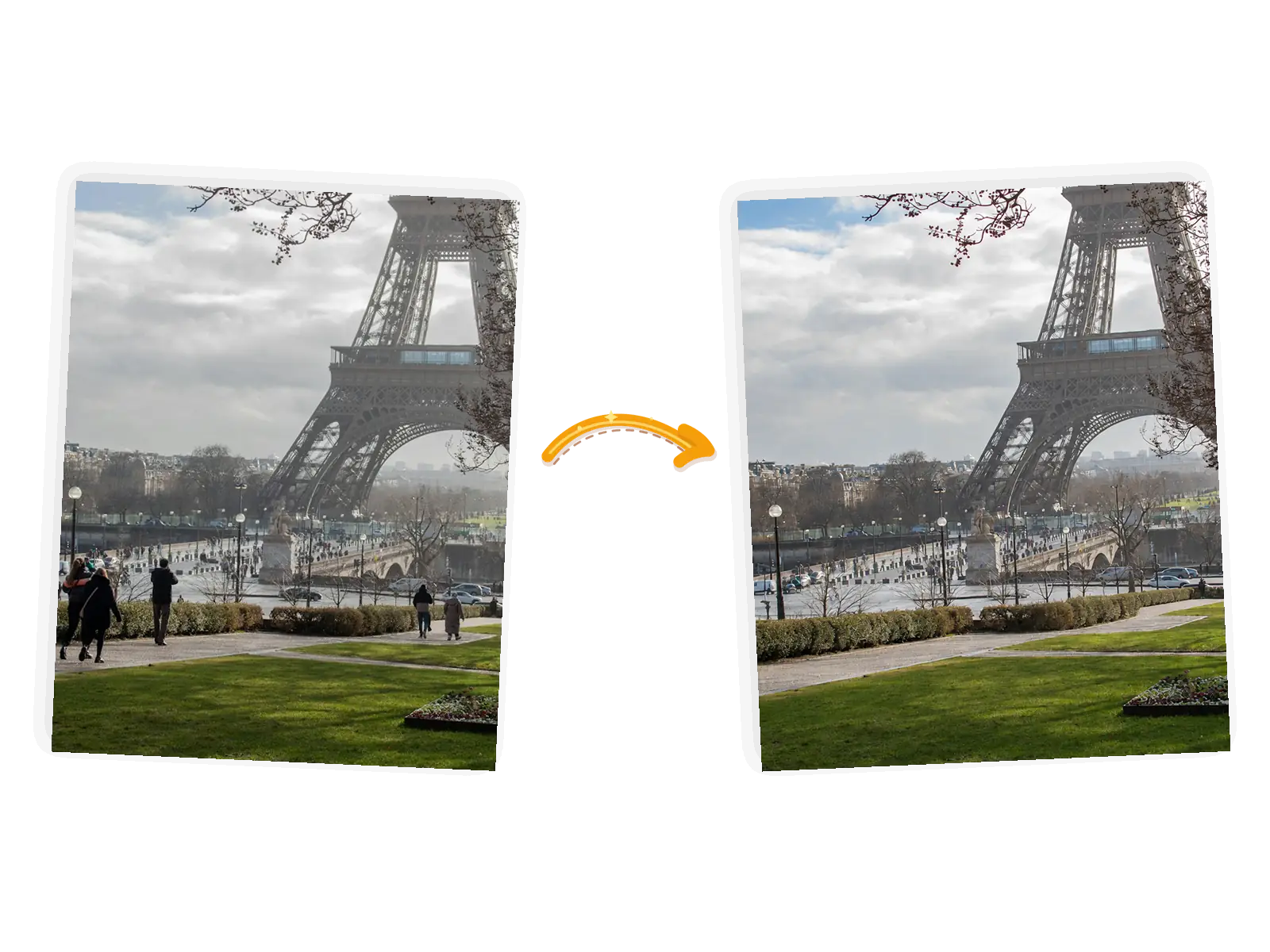
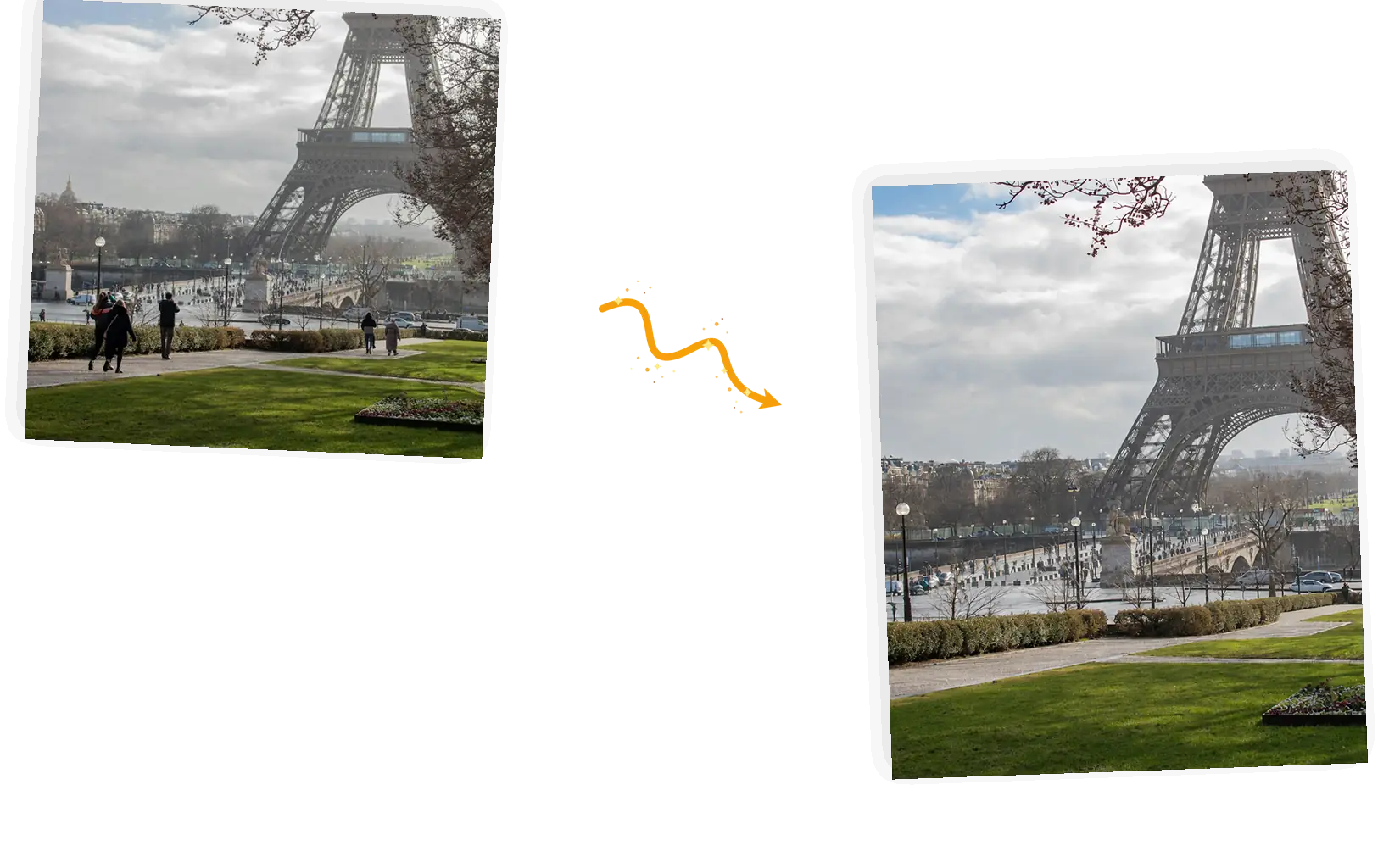
Remove the people walking in the background of this photo and fill the area with the pavement and buildings behind them. Keep the tower, the trees, the sky, and the framing exactly unchanged
Brush erasers ask you to paint a mask and hope the edges hold. Here you type the target and where it sits: the strangers by the railing, the bin at the edge of the frame. The removal follows the words.
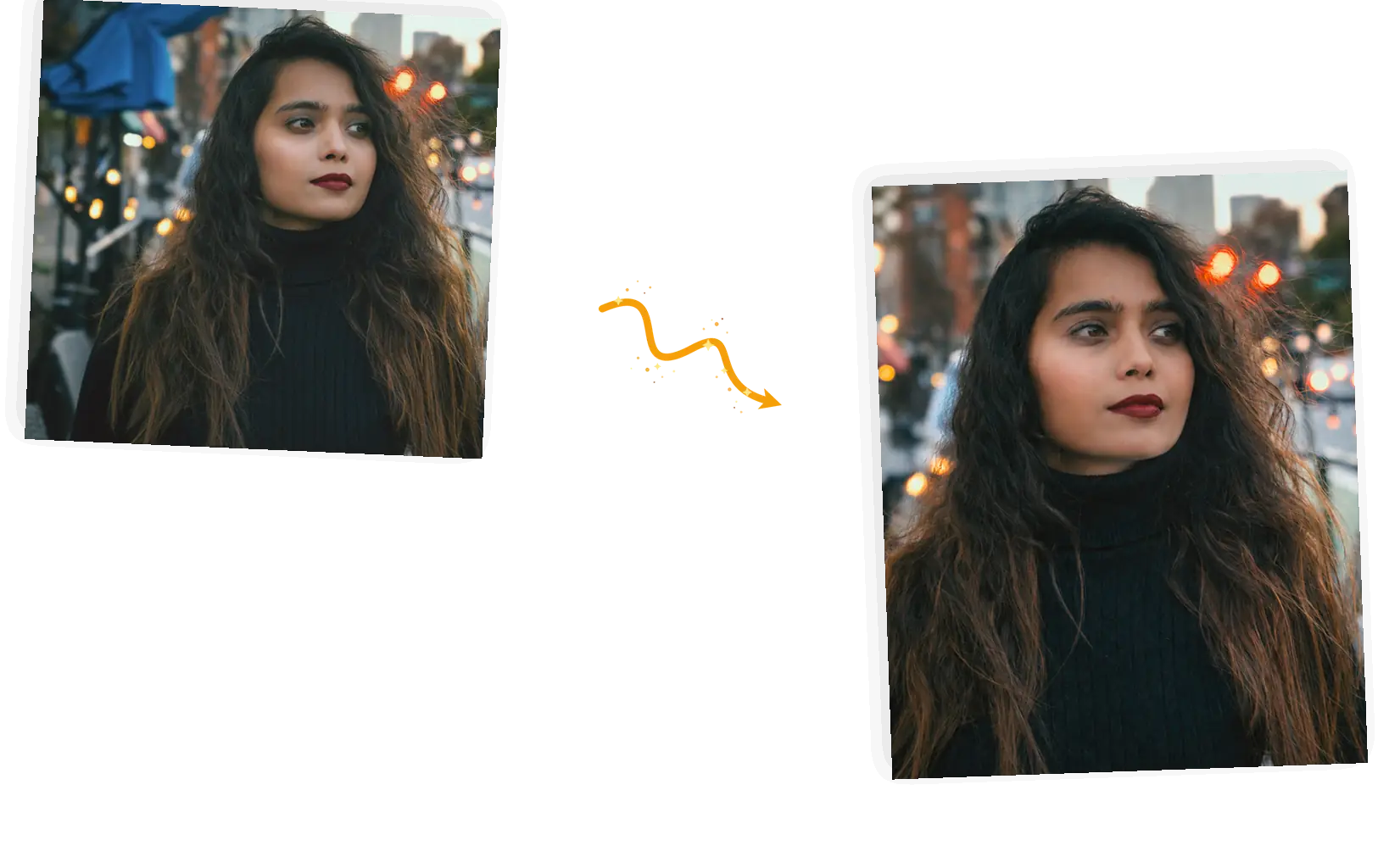
Say what must survive the edit and it stays: her face, the product, the lettering on the sign. Naming the keepers is what stops a cleanup from turning into a re-imagining of your photo.
What sits behind a removed object is re-drawn from its surroundings. Pavement, plaster, and open sky usually fill convincingly; busy textures and long straight lines deserve a close look before you download.
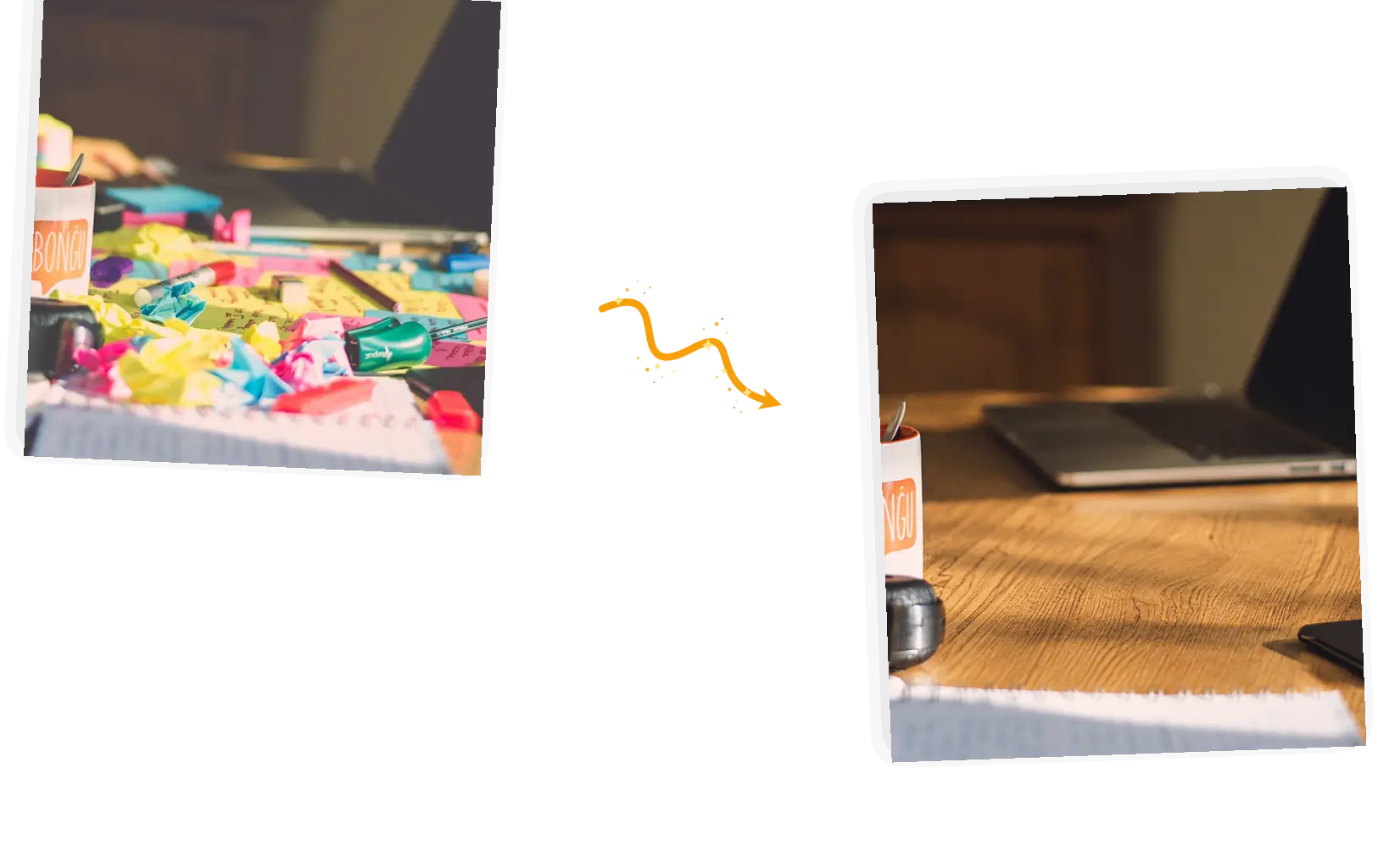
Generative results can vary. If a line bends or a texture stutters, rerun with the object's position described more precisely; a second pass often lands where the first one slid. Failed tasks return their credits.
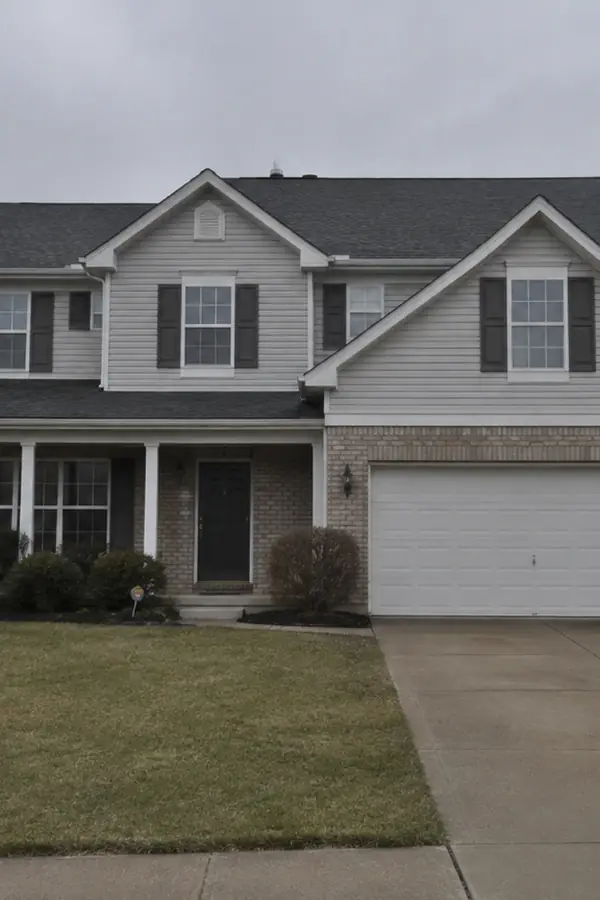
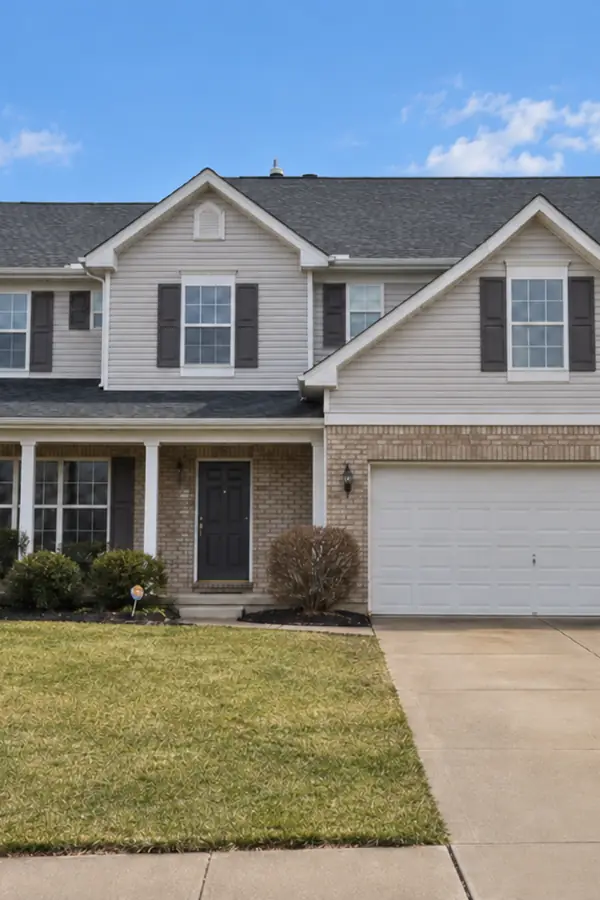
An AI object remover is a cleanup tool for photos that were fine until something got into the frame: tourists crossing the landmark, a bin beside your product, a sign hanging over a nice door. You upload one photo, name the object and where it sits, and the editor re-renders the frame without it, drawing the pavement, wall, or sky that was behind. It runs in the same editor as every tool on this site, takes JPEG, PNG, or WebP files up to 20MB, and handles one photo at a time. Because the space an object leaves is re-drawn rather than uncovered, treat the result as a draft worth zooming into: simple backgrounds fill cleanly, and a pass that misses can be rerun with a sharper description.
Remove a logo from your photoRead the guide to removing people from photosFive steps from a cluttered frame to a clean one worth posting.
Bring the JPEG, PNG, or WebP file up to 20MB. One photo per edit. Objects against simple backgrounds, like pavement, walls, or sky, remove most convincingly.
Point at the object and its position: the man by the fountain, the cone at the lower left. List what stays: the faces, the products, the lettering, the rest of the scene.
Keep the original aspect ratio so the composition stays put. The editor shows the credit cost before you generate; the standard 1K size costs 3 credits, and larger sizes follow the model and your plan.
Set the result beside the original and zoom into the area that changed. Pavement and plaster usually fill cleanly; busy textures and long lines deserve a second look before you keep the pass.
Download the clean version at full resolution with no watermark, or stay in the editor and remove one more object from the same photo.
Naming the object and its surroundings gives the model context that a smeared clone stamp or a rectangular patch lacks. The fill continues the pavement, wall, or sky that was actually there, and the keep-list holds everything else still.
Brush erasers live or die by how steady your hand is, especially on a phone. Here the whole edit is a sentence, the ready-made suggestions show the pattern, and the credit cost shows before each run.
Download at full resolution with no watermark, or stay in the workspace and run the next pass: another removal, a recolor, or an enhancement on the same photo.
Three ways to get an object out of a photo, compared on what each one asks of you and where the prompt-driven tool fits.
| Dimension | Manual retouching | Brush eraser apps | AI Object Remover |
|---|---|---|---|
| What drives the removal | A selection or clone stamp built by hand | A brushed mask over the target | A sentence naming the object and its spot |
| Targets per run | One patch at a time | One brushed area at a time | Several objects named in one prompt |
| Guarding the rest | Untouched areas stay as they were | Edges can smudge where the mask bleeds | A keep-list names faces, text, and products to leave alone |
| Output size | Exports at your working size | Free tiers often cap export size | 1K standard; 2K and 4K by model and plan |
| Learning curve | Steady hands and real practice | Low, though fiddly on a phone screen | One plain sentence |
| Trying again | Undo and redo the patch work | Repaint the mask and refill | Rerun with a sharper description; failed tasks refund credits |
The prompt is the whole steering wheel: name the target, place it, and say what stays.
Remove the [object] from this photo; keep the [faces, text, the rest of the scene] exactly unchanged.
Too vague
“remove the people from my photo”
More useful prompt
“Remove the two people walking on the path behind me; keep my face, the tower, and the gardens exactly unchanged”
Too vague
“make the desk look clean”
More useful prompt
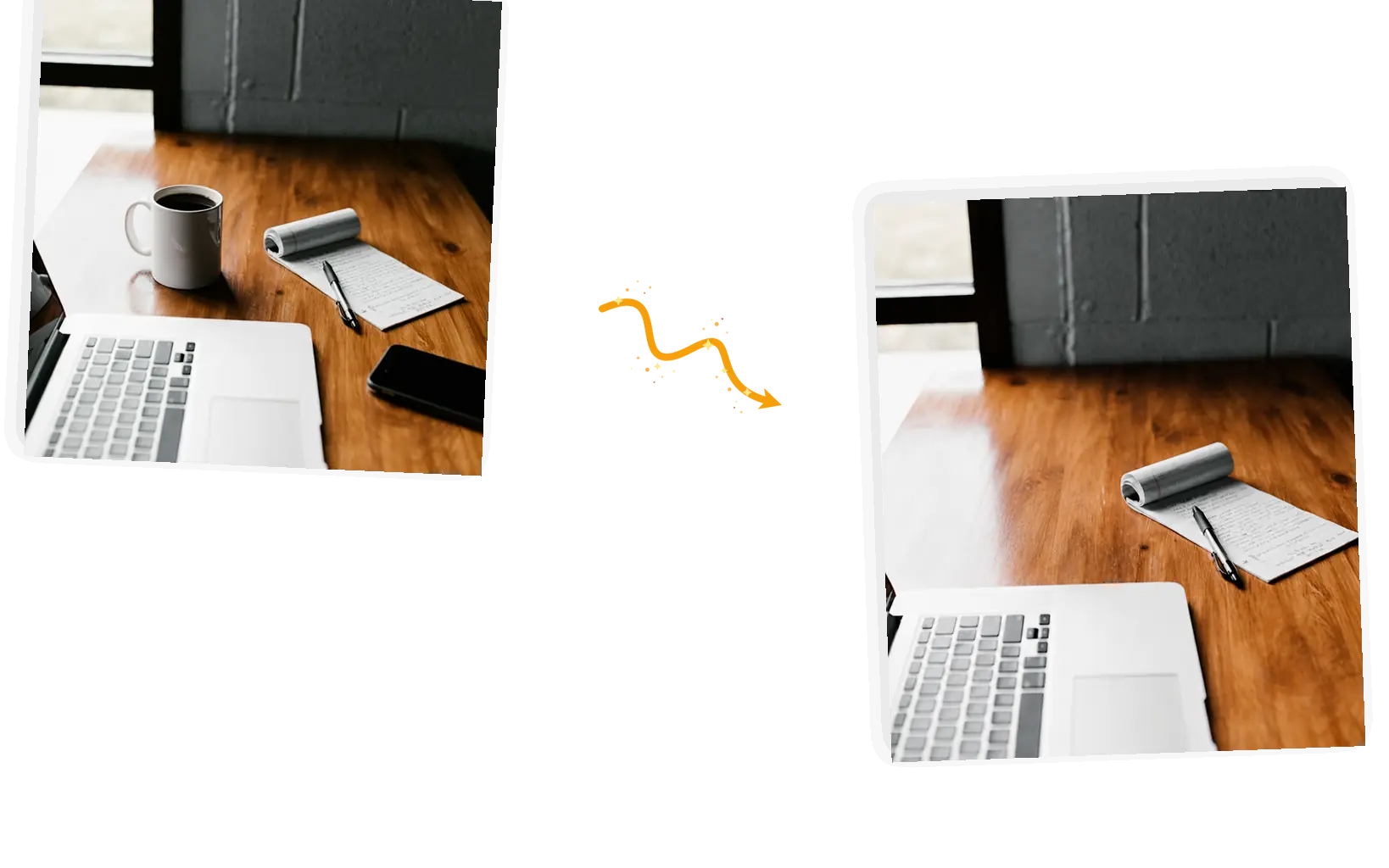
“Remove the mug and the phone from the desk; keep the laptop, the notebook, and the wood grain exactly unchanged”
Too vague
“delete the writing on the window”
More useful prompt
“Remove the hanging sign and its hook from the glass; keep the reflections and the shop interior behind it exactly unchanged”
Landmarks draw crowds, and the one shot you finally like has a dozen strangers crossing it. An AI object remover clears the walk-through traffic while the building, the gardens, and the sky stay as they were.
A product shot grabbed where there was room picks up cables, chairs, and other people's stock. The AI object remover takes the background clutter out so the listing photo looks styled on purpose.
Thumbnails, carousels, and b-roll get one cleanup pass before publishing. The AI object remover handles the exit sign glowing over your cafe shot or the photobomber two tables back.
Practical guides and product updates from the team.
How this AI object remover works, what the fill can and cannot do, and what it costs.
Upload one photo, name what goes, and check the fill up close before you download. The clean version is one prompt away.