




How to Restore Old Photos: Fix Scratches, Tears, and Fading

Upload the print and name the damage: the scratch across a cheek, the water stain in one corner, thirty years of washed-out color. The editor repairs what you point at while faces and everything you name keep their place.

  • No sign-up
  • Free daily credits
  • No watermark
0 / 1000

Example 1 of 3

Fix scratches and fading

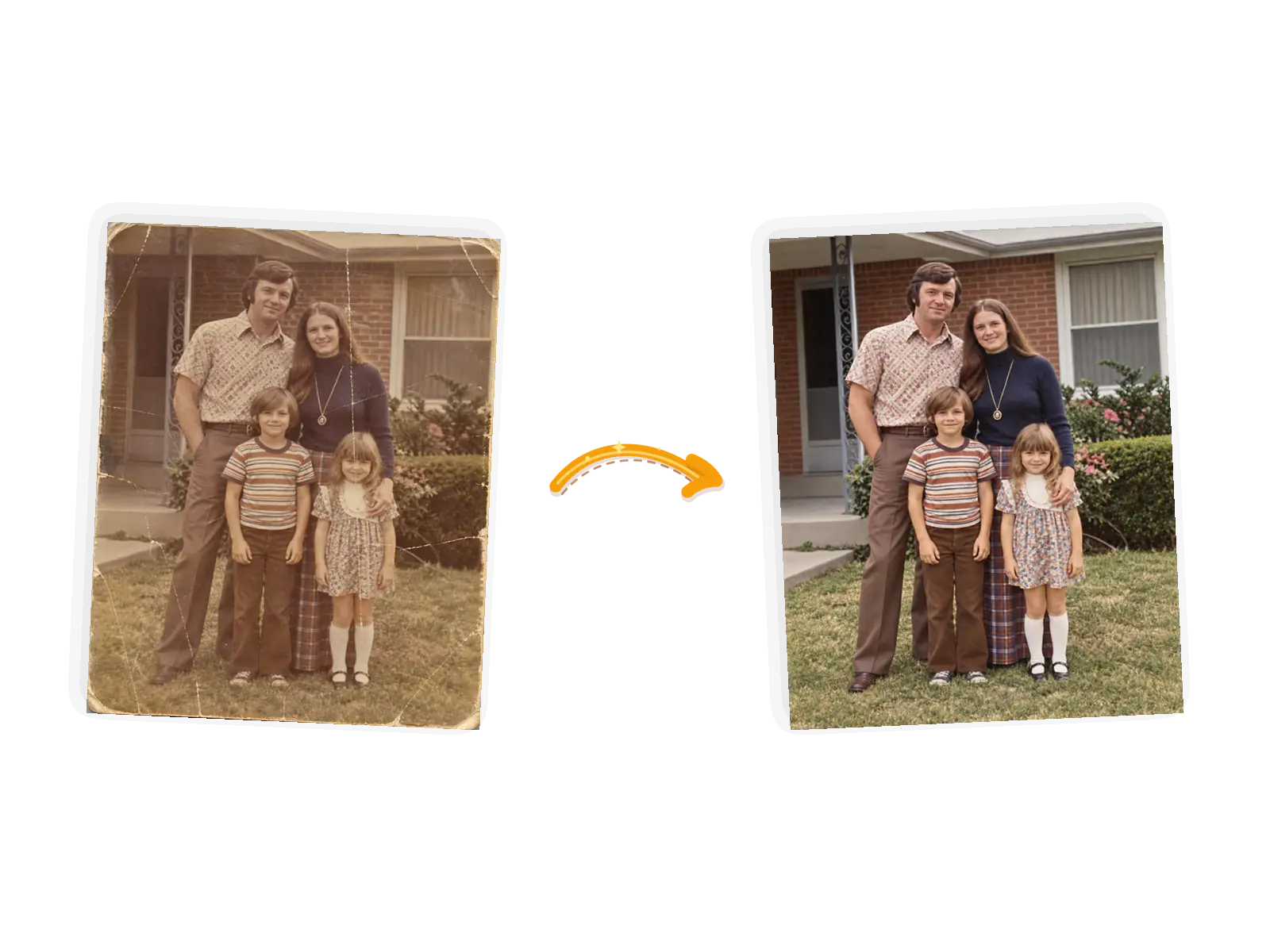
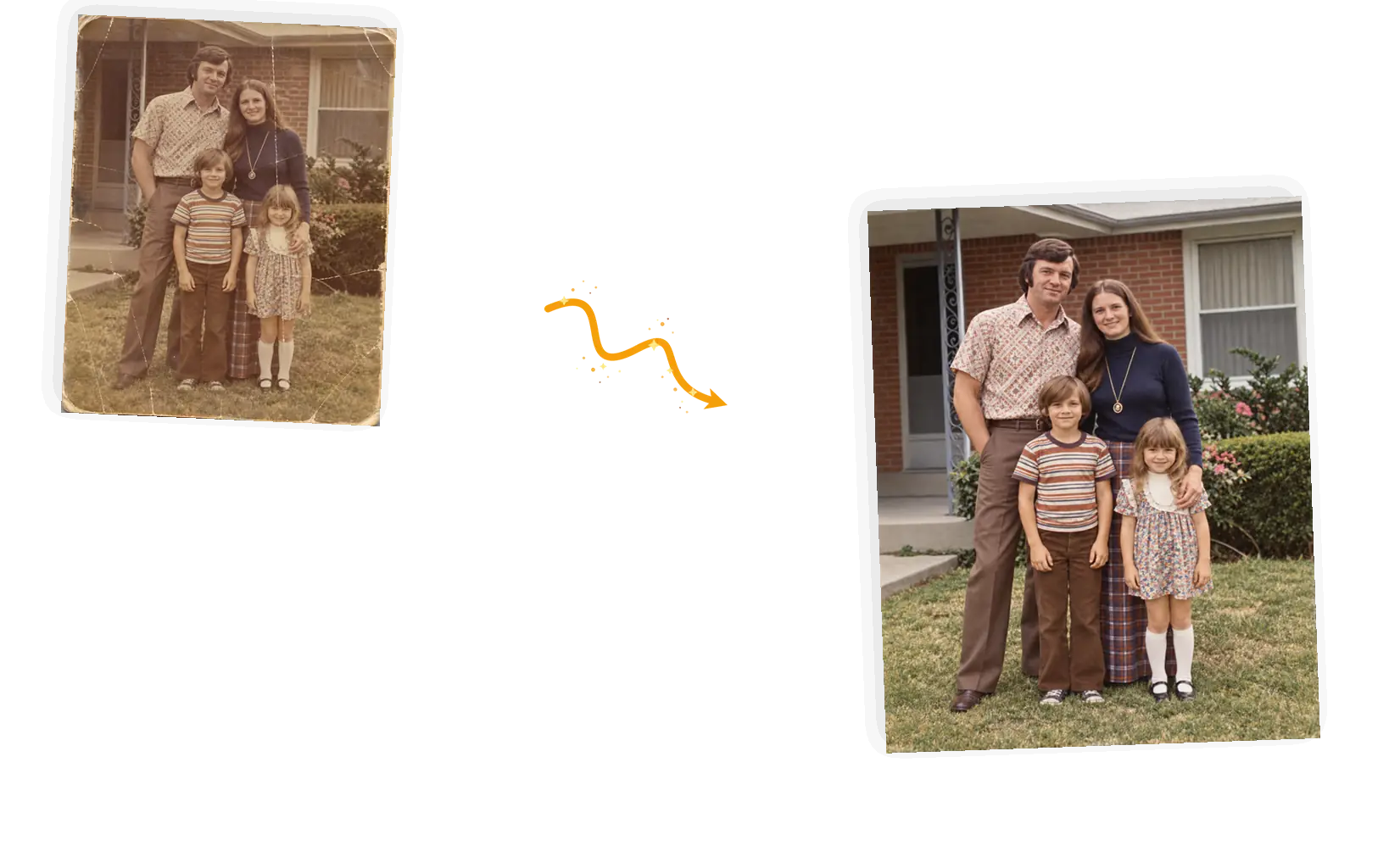
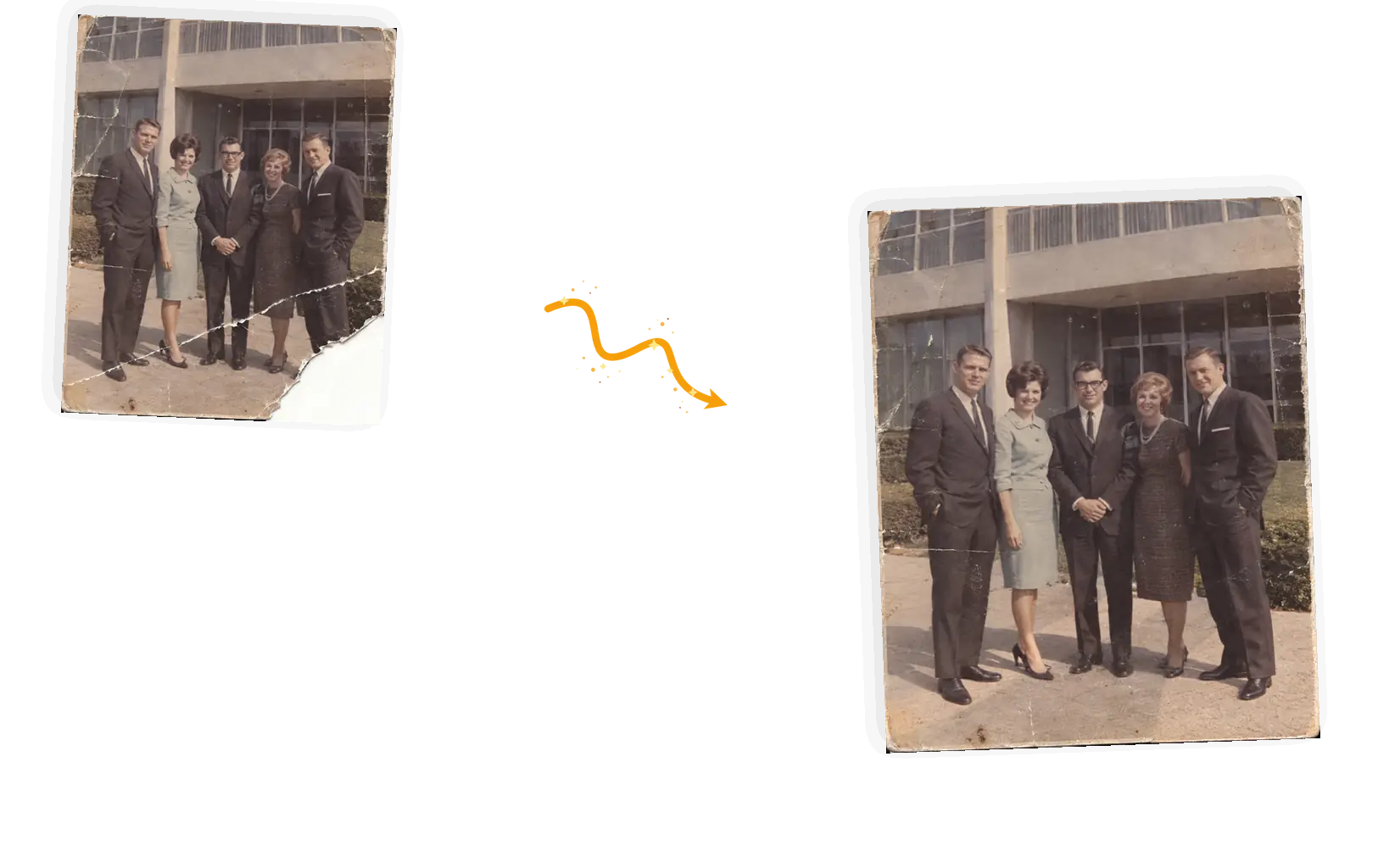
Editor example: a scratched, faded 1970s family photo restored to clean color, input on the left and repaired result on the right
Prompt

Repair the scratches, creases, and faded color in this old family photo. Keep the faces, clothing, poses, and the background unchanged.

What Makes This Old Photo Restorer Different

Before and after: an old photo where only the named scratch damage was repaired

Name the damage, not the whole print

One-click restorers decide for you what counts as damage. Here the prompt carries the type and the location: the scratch on the left cheek, the crease through the corner, the water stain under the table. The editor works on what you named, and the surviving parts of the picture stay as scanned.
Before and after: a restored old photo where the faces stayed recognizable

Say what must stay

Restoration goes wrong when the repair changes the person. A keep-list line in the prompt (keep the faces, the handwriting in the corner, the background) anchors the edit while damaged areas get rebuilt. Family likeness is the point of restoring an old photo, so the prompt is written to defend it.

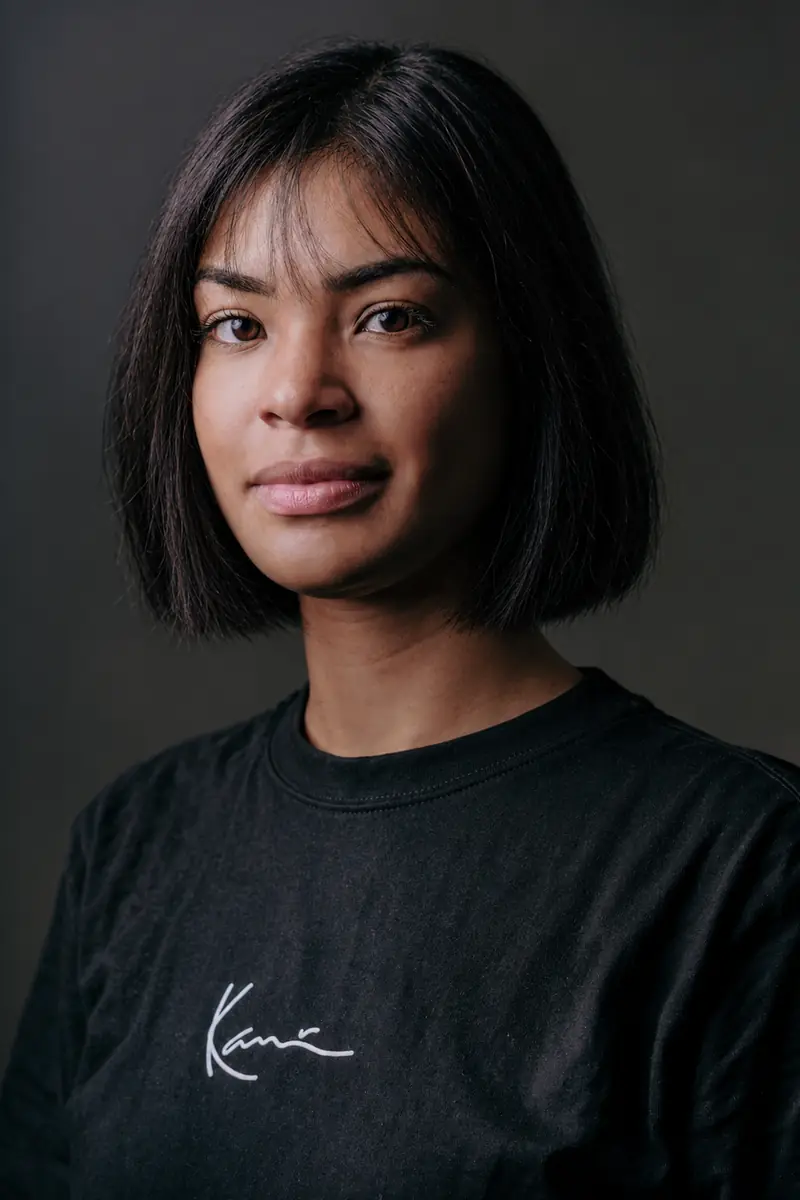
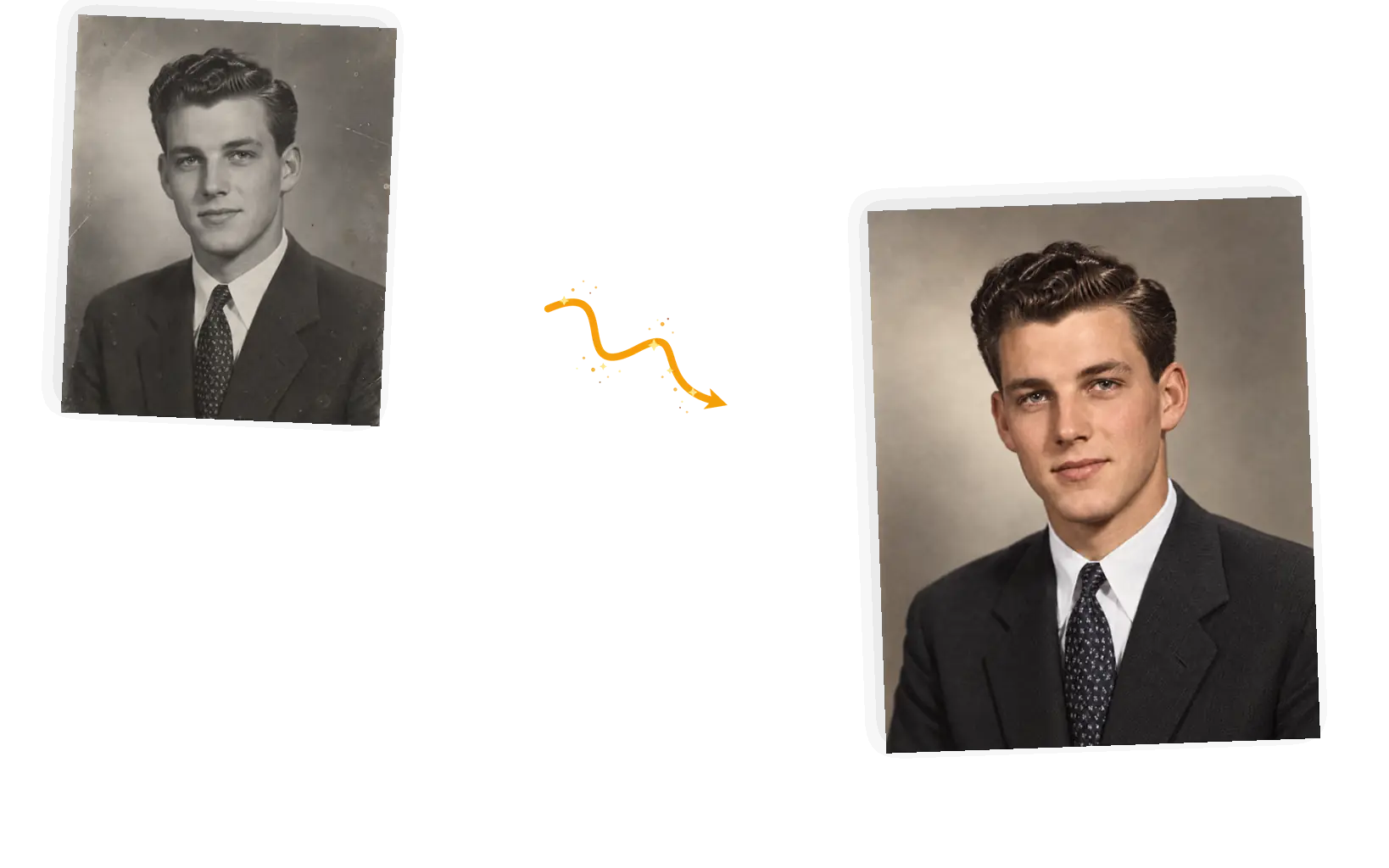
Before and after: a black-and-white portrait colorized with natural tones

Bring color back to faded and black-and-white prints

Faded color prints get their palette rebuilt from what survives: skin tones first, then clothing and background. Black-and-white originals can be colorized from the same prompt box (ask for period-appropriate color) and checked against the original. Color work is generative, so treat the first pass as a proposal.

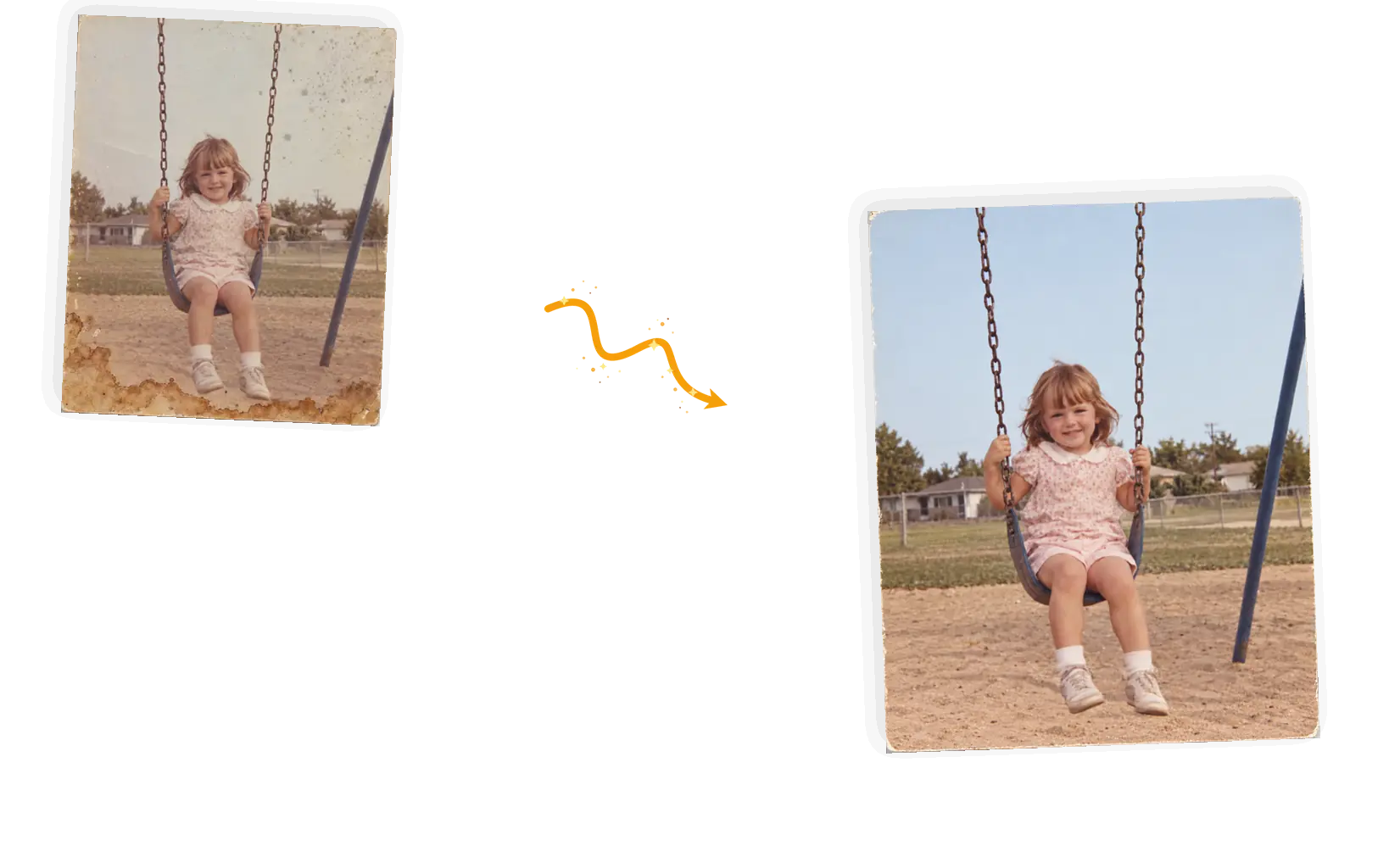
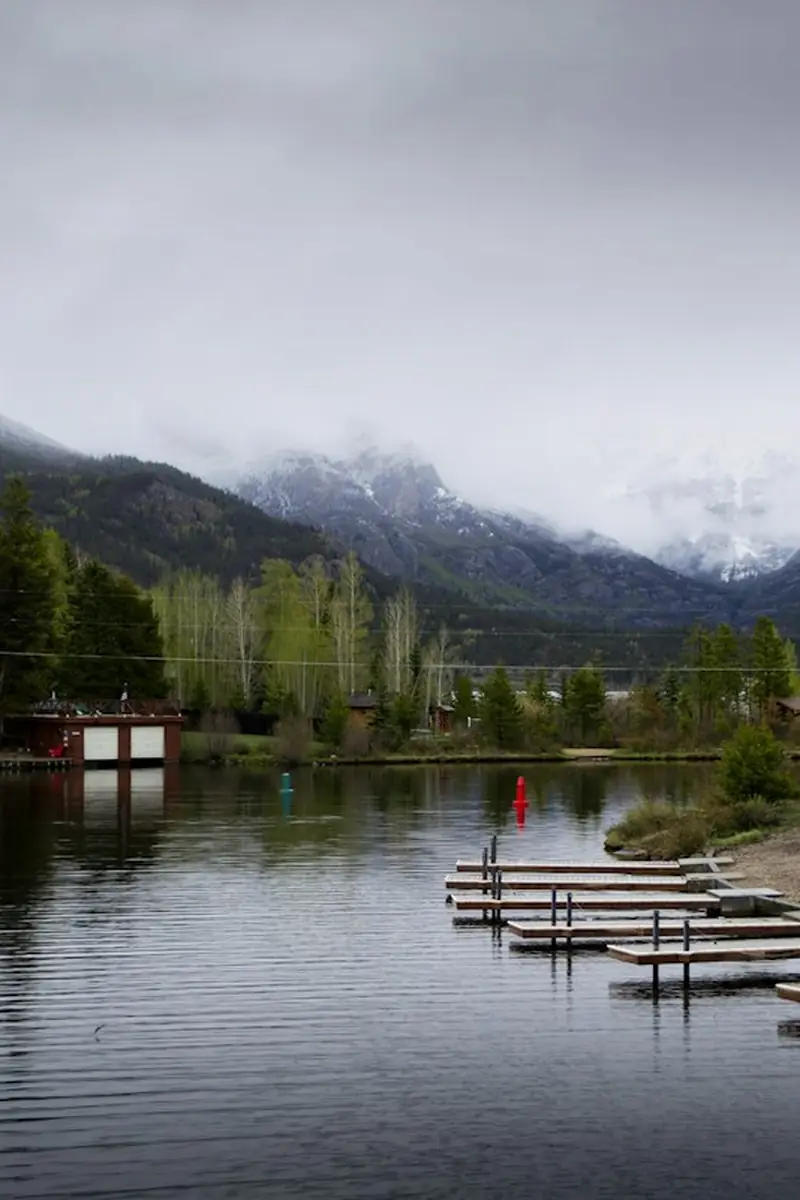
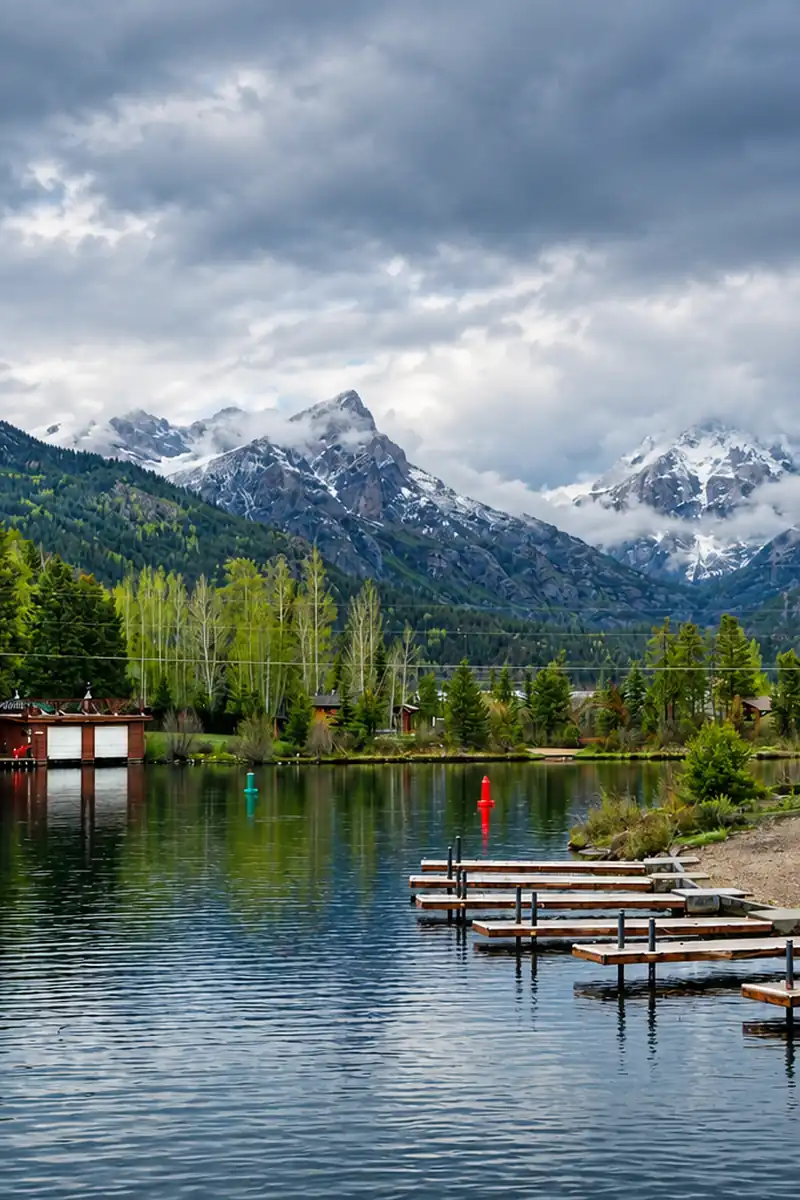
Before and after: a water-stained old photo cleaned up after a rerun

Rerun until the print looks right

Every run is fresh pixels, so two passes over the same photo can differ. When a repair misses (a scratch half-filled, a skin tone gone muddy), rerun with a sharper description of the spot. Failed tasks return their credits automatically, so a bad streak costs attention, not money.

What Is Old Photo Restoration?

Old photo restoration is the repair work a damaged print needs: scratches filled, tears closed, stains lifted, faded color brought back. If you have been wondering how to restore old photos without learning clone stamps and healing brushes, the work here is prompt-driven: name the damage and where it sits, list what must stay, and the editor re-draws only the damaged areas. It handles one photo at a time. Heavily damaged regions are re-drawn pixels, so zoom in against the original and rerun anything that looks off.

Restore your old photo now

How to Restore an Old Photo

Five steps from damaged original to a clean download. The whole loop runs in the editor on this page.

1

Start from the best copy you have

Scan the print at 300 DPI or photograph it flat under even light with no glare. Drop the JPEG, PNG, or WebP in (up to 20MB) and keep the original scan untouched for the next rerun.

2

Name the damage and where it sits

The scratch on the left cheek, the crease through the corner, the water stain along the bottom. One family of damage per prompt keeps the repair predictable.

3

Say what stays and choose the output

Keep the faces, the handwriting, the background: write the keep-list into the prompt. Keep the original ratio for most repairs; 1K at 3 credits fits the daily free allowance, and a higher tier is only for print.

4

Generate and check the repaired area

Damaged regions come back re-drawn. Zoom in: skin tone should be even and patterns should continue across the repair. Not quite right? Rerun with a sharper location.

5

Use the result

Download full resolution with no watermark, or keep editing in the same workspace: a color pass, an object removal, or a rerun of this repair.

Why Use a Prompt-Based Photo Restoration Tool

Repairs the damage, not the whole print

One-click filters redraw everything, including the parts that survived fifty years fine. Naming the damage edits just that region, so intact faces stay as scanned and the picture keeps its original character.

No retouching skills required

Manual restoration means clone stamps, healing brushes, and hours on a single print. Describing the damage in a sentence takes a minute; the editor does the selection and rebuild work.

The result keeps working

Downloads are full resolution and watermark-free, and every edit stays in your workspace. Follow with a color pass or an object removal on the same photo without starting over.

How Restore Old Photos Compares

The rows below compare the usual ways to repair an old print, not specific products.

DimensionManual retouchingGeneral AI chatRestore Old Photos
Starting copyRescan at high DPI or reshoot the printOne upload per messageJPEG, PNG, or WebP up to 20MB, one photo per edit
Pointing at the damageMask, clone, and heal by handDescribe it in words; the model decides what changesName the damage type and its location in the prompt
Protecting the restWhatever your mask excludes is safeLimited local control over an uploaded photoKeep-list in the prompt: faces, handwriting, background
Color workHand-tuned color grading, layer by layerColor requests often drift from the originalFaded-color rebuild and black-and-white colorization by prompt
OutputWhatever your software exportsOften re-generated at fixed sizesOriginal ratio, full-resolution download, no watermark
RerunningStep back and redo the strokesRegenerate and compareRerun with a sharper description; failed tasks refund credits

Tips for Better Photo Restoration Prompts

The prompt is the whole control surface. These three rules cover most of what goes wrong.

  • Name the damage and its location together: 'the water stain along the bottom edge' beats 'fix the damage'. One damage family per prompt.
  • Write the keep-list explicitly: the faces, the signature in the corner, the fence in the background. Unnamed areas are the ones that drift.
  • Judge the repair at full zoom before downloading. If a rebuilt face or texture looks patched, rerun with a tighter location and a note on what the surface should continue.

Repair the [damage + where it sits]; keep [the faces / the handwriting / the background] unchanged.

A scratched family photo

Too vague

Make this old photo look new again.

More useful prompt

Fill the white scratch lines across the faces and revive the faded color; keep the faces, clothing, poses, and background unchanged.

A water-stained print

Too vague

There are stains everywhere, clean it up.

More useful prompt

Lift the brown water stains along the bottom edge and the mold spots in the sky; keep the child's face and the swing exactly unchanged.

A black-and-white portrait

Too vague

Colorize this photo.

More useful prompt

Colorize this black-and-white studio portrait with period-appropriate skin and suit tones; keep the pose, expression, and details unchanged.

Who Uses This Photo Restoration Tool

Family historians

Every shoebox holds a print that time got to first. If you have been searching how to restore old photos of grandparents and great-grandparents, this is the direct route: upload the scan, name the damage, and keep the faces the family recognizes.

Genealogy hobbyists

Archive work means dozens of damaged prints and no lab budget. Restoring old photos yourself, one prompt at a time, keeps a family-tree project moving between library visits.

Print and frame shops

Customers bring in the one surviving copy of a torn or faded picture and want it wall-ready. A restoration pass before reprinting turns a decline into a paid job instead of an apology.

How to Restore Old Photos: FAQ

How to restore old photos with prompts, which damage the tool repairs, and what to expect from re-drawn areas.

You upload the print, describe the damage and its location, and list what must stay. The editor then runs a generative edit that repairs the named areas. Restoring old photos this way is re-drawing rather than filtering: pixels in the damaged regions are new, anchored by your keep-list, and you judge the result at full zoom before downloading.

The keep-list in your prompt anchors them, and intact faces usually survive restoration untouched because the editor re-draws only the damaged regions. A face half-covered by a tear is a different case: that region is reconstructed, and results can vary between runs. Compare against the original at full zoom, and rerun with a sharper keep-list if a repair drifts.

Scratches, creases, tears and missing corners, water stains, mold spotting, and decades of color fade. You can also colorize black-and-white photos from the same prompt box. Soft gradients that blur the whole image are harder to target than distinct marks, so name the sharpest edge and start there.

Scan at 300 DPI or higher when you can; otherwise photograph the print flat under even light with no glare, straight-on and filling the frame. Keep the original scan file untouched so every rerun starts from the same source, and work from the copy you upload.

One-click tools decide for you what counts as damage and redraw the whole frame to match. Here the prompt names the damage, the keep-list protects what survived, and every repair is yours to judge: results can vary, so rerun with sharper wording when a pass misses. When a task fails outright, its credits are returned automatically.

Guests get 9 free credits and signed-in accounts get 15, refreshed every UTC day. They do not accumulate. A standard 1K edit costs 3 credits, so the daily allowance covers a few old photo restoration passes, and downloads carry no watermark.

Try Restore Old Photos for Free

Upload one print, name the damage, and check the repair up close before you download.

Start editing